EC2无法启动数据恢复手册
前情概要
有一台EC2(以下简称问题实例), 系统盘数据50G,
挂载了一个2T, 一个3T的数据盘,
这两个数据盘以LVM形式挂载到/data目录且该问题实例并未创建任何快照或AMI,
由于用户不熟悉环境, 下载了一个超大文件到/home目录,
将系统写死, 发生OOM, 并后续执行了强制重启操作,
启动时报错booting from hard disk 0...且显示error 15,
系统无法启动
步骤1
联系了AWS技术支持,
他们提供方案需要我们创建问题实例的AMI, 并分享给他们,
得到结果, 该实例/boot, /bin,
/etc等全部丢失, 已失去恢复意义, 建议导出数据后重建资源
步骤2
新建一个空EC2, 将
问题实例的系统盘及数据盘全部deattach并挂载到新建的空EC2上, 创建新的暂存数据盘, 容量暂定500G, 并挂载到空EC2上挂载磁盘及初始化磁盘等略过, 将
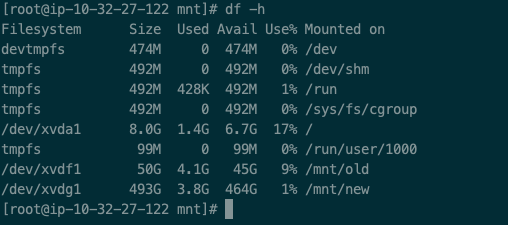
问题实例系统盘挂载到/mnt/old目录, 暂存盘挂载到/mnt/new目录, 结果如下![磁盘状态]()
进入
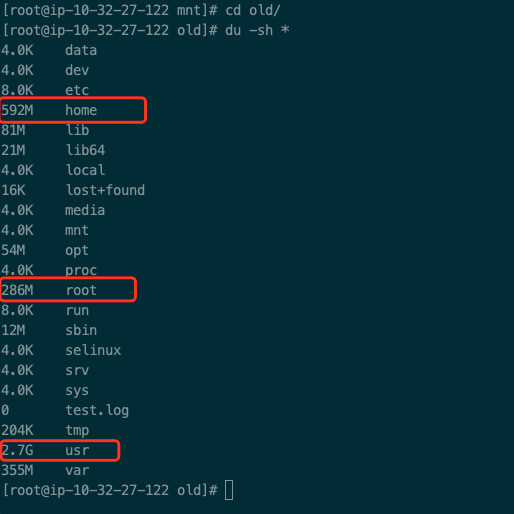
问题实例根目录, 执行du -sh *查看目录大小![检查目录大小]()
将上述三个目录整体拷贝至
/mnt/new1
2
3cp -r ./home /mnt/new/
cp -r ./root /mnt/new/
cp -r ./usr /mnt/new/卸载
问题实例根目录, 登录console, 将该磁盘挂回问题实例的/dev/xvda按照
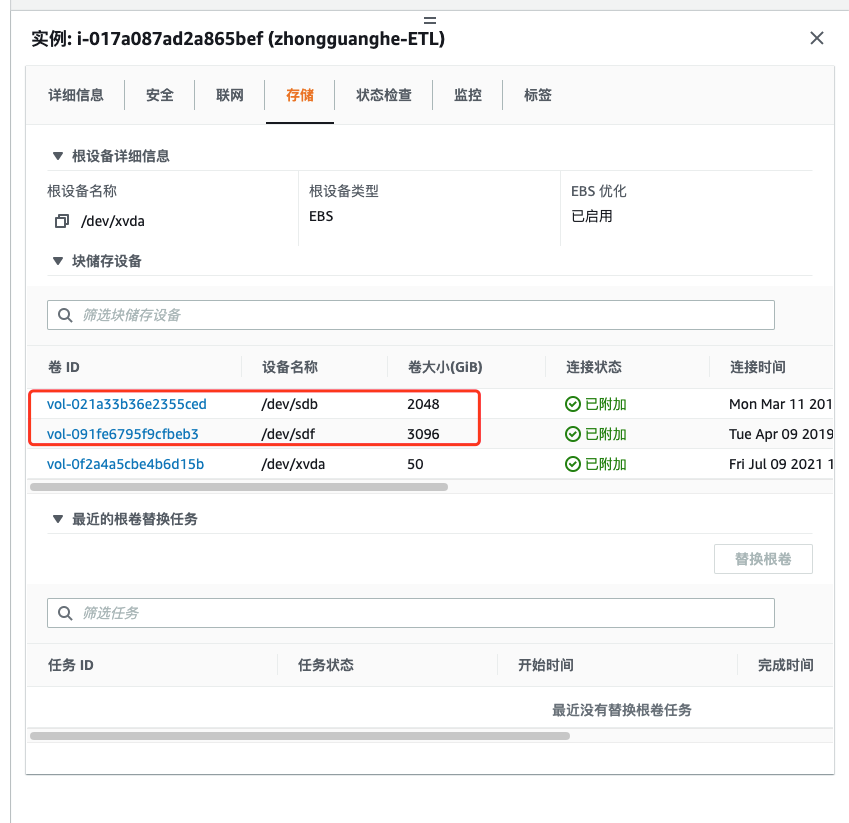
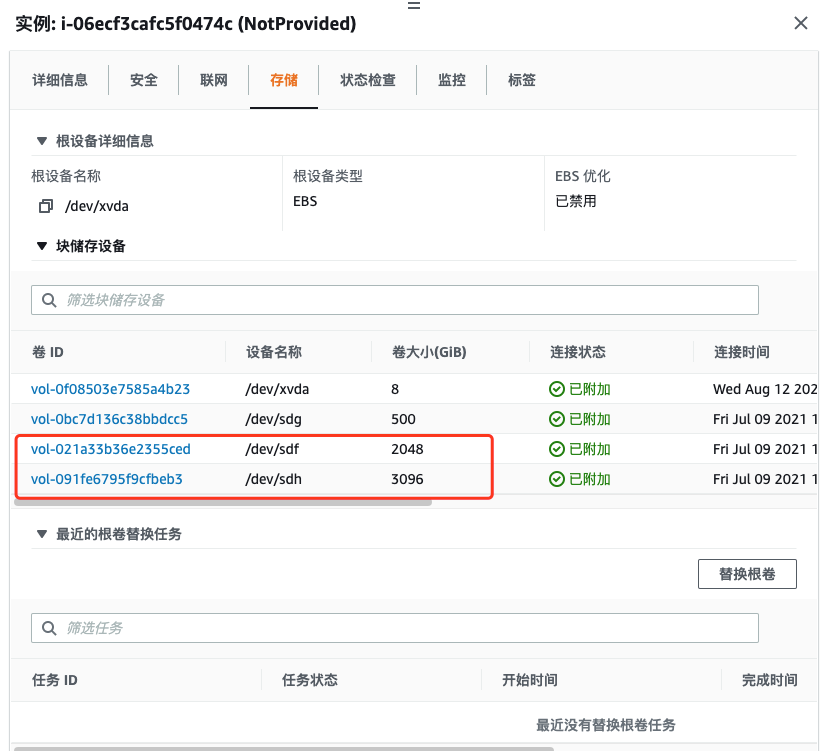
问题实例原挂载顺序, 解除挂载并重新挂载到空EC2上![原实例挂载情况]()
![排查实例挂载情况]()
进入shell, 执行
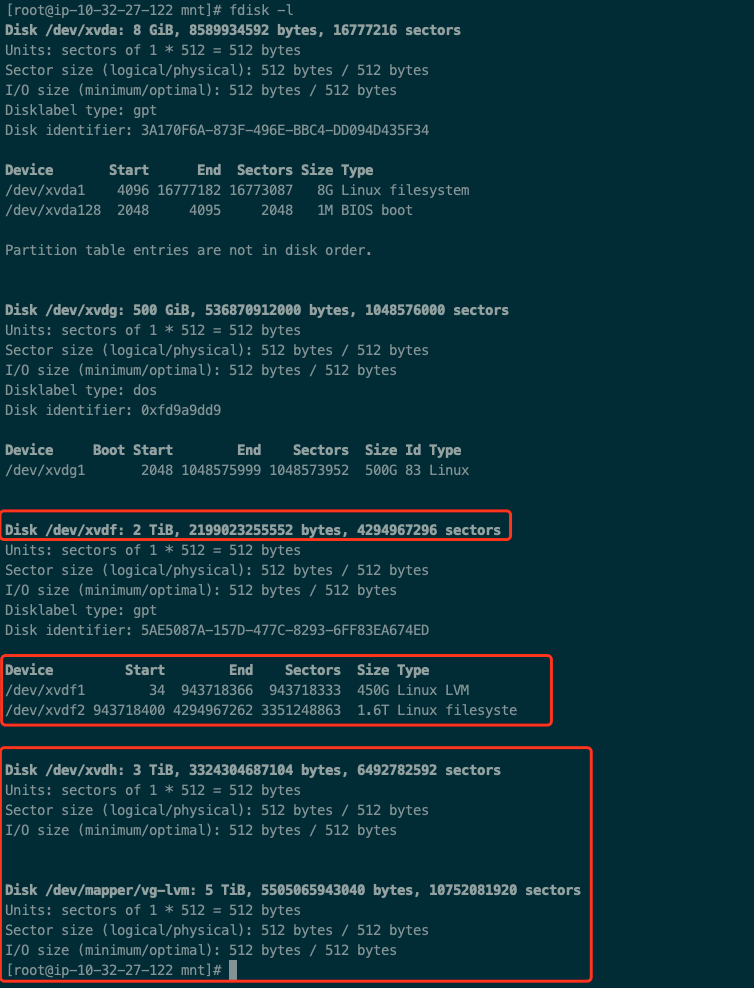
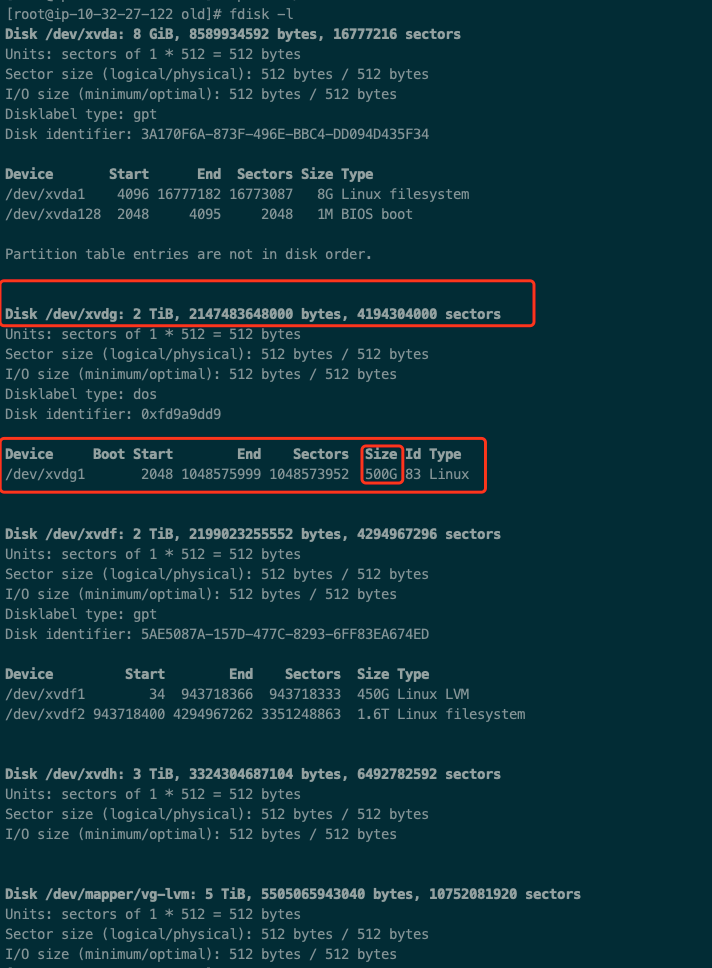
fdisk -l检查挂载情况![检查LVM是否可直接挂载]()
万幸万幸,
/dev/mapper/vg-lvm被自动识别到了, 直接挂载到刚才建的目录/mnt/old1
mount /dev/mapper/vg-lvm /mnt/old
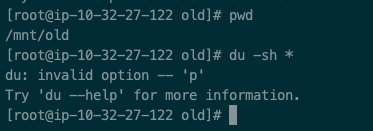
进入目录检查一下文件大小, 发现一个小问题
![检查大小出错]()
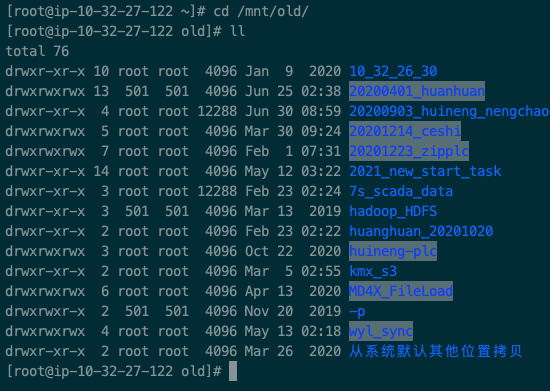
![存在异常文件夹目录]()
看到有一个名为
-p的目录了么? 猜测可能是用户执行mkdir -p -p造成的, 这个目录直接用rmdir ./-p删掉后可以顺利检查文件大小因为
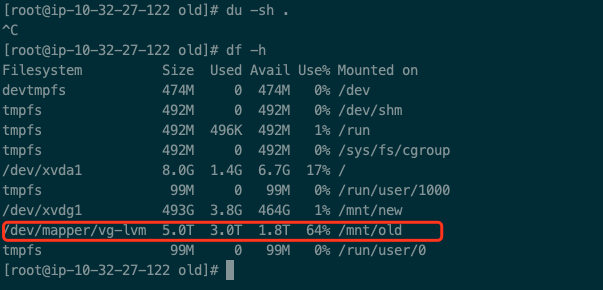
du -sh .实在太慢了, 所以我使用了df -h查看一下整个目录的大小, 发现500G完全不够用啊![检查磁盘整体大小]()
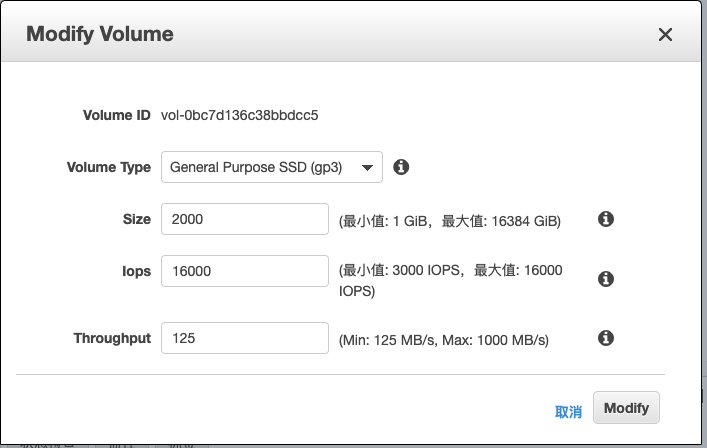
转到Console, 将临时盘扩容至2T, 因为使用了
GP3的磁盘, 所以可以调整IOPS, 直接拉满![调整磁盘大小]()
修改后, 需要进入console对数据盘进行容量同步
![同步系统]()
![同步前大小]()
![同步后大小]()
1
2
3
4
5
6
7
8
9
10
11查看磁盘物理容量
[root@ip-10-32-27-122 old]# fdisk -l
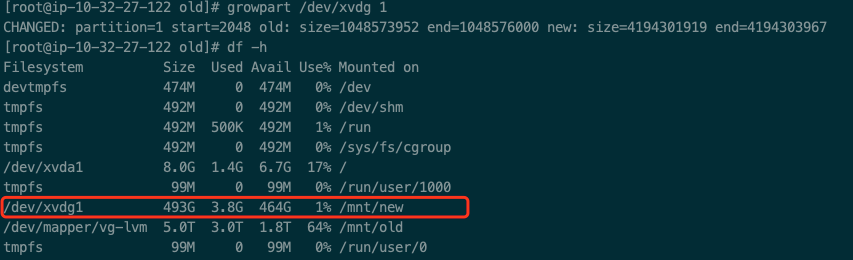
对已有分区进行扩容操作
[root@ip-10-32-27-122 old]# growpart /dev/xvdg 1
同步扩容结果到OS (EXT4)
[root@ip-10-32-27-122 old]# resize2fs /dev/xvdg1
同步扩容结果到OS (XFS)
[root@ip-10-32-27-122 old]# xfs_growfs -d /mnt/new
详细说明, 参考: https://docs.amazonaws.cn/en_us/AWSEC2/latest/UserGuide/recognize-expanded-volume-linux.html?icmpid=docs_ec2_console正好是周五, 放后台进行数据拷贝, 等周一看结果
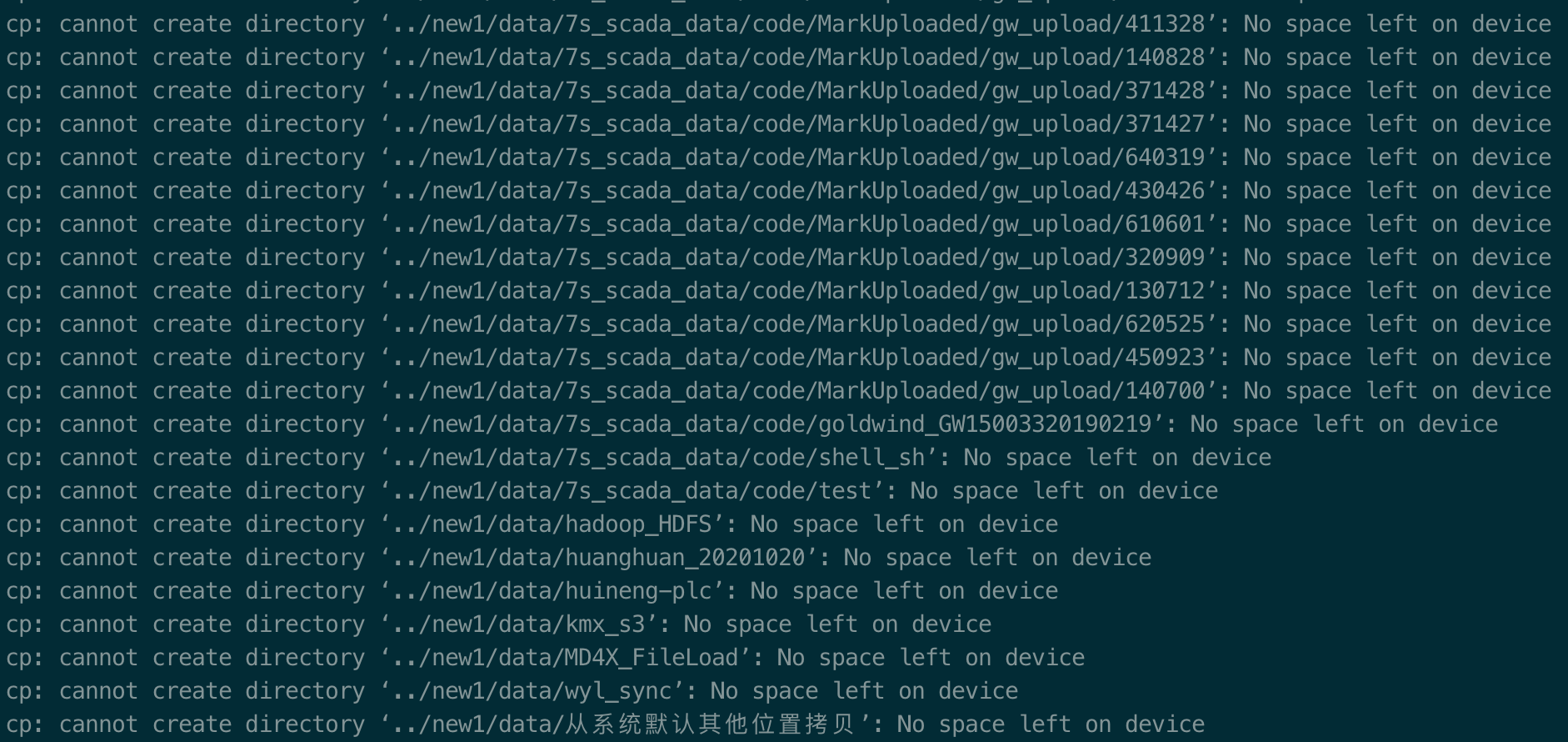
周一我登上去一看都傻了, 数据拷贝出现问题了...
![同步报错]()
这是容量不足了啊, 我记得我扩容了啊, 重新执行一下扩容命令
1
2
3
4
5
6[root@ip-10-32-27-122 ~]# growpart /dev/xvdi 1
WARNING: MBR/dos partitioned disk is larger than 2TB. Additional space will go unused.
NOCHANGE: partition 1 could only be grown by 1 [fudge=2048]
[root@ip-10-32-27-122 ~]# resize2fs /dev/xvdi1
resize2fs 1.42.9 (28-Dec-2013)
The filesystem is already 536870655 blocks long. Nothing to do!使用fdisk检查了一下, 发现磁盘是3.5TB的容量, 但是df检查确实是只能用到2T!
1
2
3
4
5
6
7
8
9
10
11
12
13
14
15
16
17
18
19
20
21
22
23
24
25
26
27
28
29
30
31
32
33
34
35
36
37
38
39
40
41
42
43
44
45
46
47
48
49
50
51
52
53
54
55
56
57
58
59
60[root@ip-10-32-27-122 ~]# fdisk -l
Disk /dev/xvda: 8 GiB, 8589934592 bytes, 16777216 sectors
Units: sectors of 1 * 512 = 512 bytes
Sector size (logical/physical): 512 bytes / 512 bytes
I/O size (minimum/optimal): 512 bytes / 512 bytes
Disklabel type: gpt
Disk identifier: 3A170F6A-873F-496E-BBC4-DD094D435F34
Device Start End Sectors Size Type
/dev/xvda1 4096 16777182 16773087 8G Linux filesystem
/dev/xvda128 2048 4095 2048 1M BIOS boot
Partition table entries are not in disk order.
Disk /dev/xvdf: 2 TiB, 2199023255552 bytes, 4294967296 sectors
Units: sectors of 1 * 512 = 512 bytes
Sector size (logical/physical): 512 bytes / 512 bytes
I/O size (minimum/optimal): 512 bytes / 512 bytes
Disklabel type: gpt
Disk identifier: 5AE5087A-157D-477C-8293-6FF83EA674ED
Device Start End Sectors Size Type
/dev/xvdf1 34 943718366 943718333 450G Linux LVM
/dev/xvdf2 943718400 4294967262 3351248863 1.6T Linux filesystem
Disk /dev/xvdh: 3 TiB, 3324304687104 bytes, 6492782592 sectors
Units: sectors of 1 * 512 = 512 bytes
Sector size (logical/physical): 512 bytes / 512 bytes
I/O size (minimum/optimal): 512 bytes / 512 bytes
Disk /dev/mapper/vg-lvm: 5 TiB, 5505065943040 bytes, 10752081920 sectors
Units: sectors of 1 * 512 = 512 bytes
Sector size (logical/physical): 512 bytes / 512 bytes
I/O size (minimum/optimal): 512 bytes / 512 bytes
Disk /dev/xvdi: 3.4 TiB, 3758096384000 bytes, 7340032000 sectors
Units: sectors of 1 * 512 = 512 bytes
Sector size (logical/physical): 512 bytes / 512 bytes
I/O size (minimum/optimal): 512 bytes / 512 bytes
Disklabel type: dos
Disk identifier: 0xff4b93a8
Device Boot Start End Sectors Size Id Type
/dev/xvdi1 2048 4294967294 4294965247 2T 83 Linux
[root@ip-10-32-27-122 ~]# df -h
Filesystem Size Used Avail Use% Mounted on
devtmpfs 474M 0 474M 0% /dev
tmpfs 492M 0 492M 0% /dev/shm
tmpfs 492M 508K 492M 1% /run
tmpfs 492M 0 492M 0% /sys/fs/cgroup
/dev/xvda1 8.0G 1.4G 6.7G 18% /
tmpfs 99M 0 99M 0% /run/user/1000
/dev/mapper/vg-lvm 5.0T 3.0T 1.8T 64% /mnt/old
/dev/xvdi1 2.0T 2.0T 0 100% /mnt/new1看到
Disklabel type: dos这行了, 上网查了下, fdisk默认创建的分区格式为MBR, 最大就支持2TB, 麻蛋天坑啊, 需要用parted或者fdisk创建GPT格式分区, 周末数据复制看来是白复制了!重新使用fdisk初始化磁盘吧, 需要一个
GPT格式分区的磁盘1
2
3
4
5
6
7
8
9
10
11
12
13
14
15
16
17
18
19
20[root@ip-10-32-27-122 ~]# fdisk /dev/xvdi
Welcome to fdisk (util-linux 2.30.2).
Changes will remain in memory only, until you decide to write them.
Be careful before using the write command.
The size of this disk is 3.4 TiB (3758096384000 bytes). DOS partition table format cannot be used on drives for volumes larger than 2199023255040 bytes for 512-byte sectors. Use GUID partition table format (GPT).
Command (m for help): p
Disk /dev/xvdi: 3.4 TiB, 3758096384000 bytes, 7340032000 sectors
Units: sectors of 1 * 512 = 512 bytes
Sector size (logical/physical): 512 bytes / 512 bytes
I/O size (minimum/optimal): 512 bytes / 512 bytes
Disklabel type: dos
Disk identifier: 0xff4b93a8
Device Boot Start End Sectors Size Id Type
/dev/xvdi1 2048 4294967294 4294965247 2T 83 Linux这个容量一开始设置错了, 不然这个提示我应该可以看到的.
1
2
3
4
5
6
7
8
9
10
11
12
13
14
15
16
17
18
19
20
21
22
23
24
25
26
27
28
29
30
31
32
33
34
35
36
37
38
39
40
41
42
43
44
45
46
47
48
49
50
51
52
53
54
55
56
57
58
59
60
61
62
63
64
65
66
67
68
69
70
71
72
73
74
75
76Command (m for help): m
Help:
DOS (MBR)
a toggle a bootable flag
b edit nested BSD disklabel
c toggle the dos compatibility flag
Generic
d delete a partition
F list free unpartitioned space
l list known partition types
n add a new partition
p print the partition table
t change a partition type
v verify the partition table
i print information about a partition
Misc
m print this menu
u change display/entry units
x extra functionality (experts only)
Script
I load disk layout from sfdisk script file
O dump disk layout to sfdisk script file
Save & Exit
w write table to disk and exit
q quit without saving changes
Create a new label
g create a new empty GPT partition table
G create a new empty SGI (IRIX) partition table
o create a new empty DOS partition table
s create a new empty Sun partition table
Command (m for help): d
Selected partition 1
Partition 1 has been deleted.
Command (m for help): g
Created a new GPT disklabel (GUID: 1E80AD59-864E-4896-87BA-042C508D4933).
The old dos signature will be removed by a write command.
Command (m for help): p
Disk /dev/xvdi: 3.4 TiB, 3758096384000 bytes, 7340032000 sectors
Units: sectors of 1 * 512 = 512 bytes
Sector size (logical/physical): 512 bytes / 512 bytes
I/O size (minimum/optimal): 512 bytes / 512 bytes
Disklabel type: gpt
Disk identifier: 1E80AD59-864E-4896-87BA-042C508D4933
Command (m for help): n
Partition number (1-128, default 1):
First sector (2048-7340031966, default 2048):
Last sector, +sectors or +size{K,M,G,T,P} (2048-7340031966, default 7340031966):
Created a new partition 1 of type 'Linux filesystem' and of size 3.4 TiB.
Partition #1 contains a ext4 signature.
Do you want to remove the signature? [Y]es/[N]o: y
The signature will be removed by a write command.
Command (m for help): w
The partition table has been altered.
Calling ioctl() to re-read partition table.
Re-reading the partition table failed.: Device or resource busy
The kernel still uses the old table. The new table will be used at the next reboot or after you run partprobe(8) or kpartx(8).删除原有的磁盘, 创建GPT分区, 重新创建数据分区, 报错了, 原来忘记umount了...
1
[root@ip-10-32-27-122 ~]# umount /mnt/new1/
重新执行上一步的操作, 正常完成
1
2
3
4
5
6
7
8
9
10
11
12
13
14
15
16
17
18
19
20
21
22
23
24
25
26
27
28
29
30
31
32
33
34
35
36
37
38
39
40
41
42
43
44
45
46
47
48
49
50
51
52
53
54
55
56
57
58
59
60
61
62
63
64[root@ip-10-32-27-122 ~]# fdisk /dev/xvdi
Welcome to fdisk (util-linux 2.30.2).
Changes will remain in memory only, until you decide to write them.
Be careful before using the write command.
Command (m for help): p
Disk /dev/xvdi: 3.4 TiB, 3758096384000 bytes, 7340032000 sectors
Units: sectors of 1 * 512 = 512 bytes
Sector size (logical/physical): 512 bytes / 512 bytes
I/O size (minimum/optimal): 512 bytes / 512 bytes
Disklabel type: gpt
Disk identifier: 1E80AD59-864E-4896-87BA-042C508D4933
Device Start End Sectors Size Type
/dev/xvdi1 2048 7340031966 7340029919 3.4T Linux filesystem
Command (m for help): d
Selected partition 1
Partition 1 has been deleted.
Command (m for help): p
Disk /dev/xvdi: 3.4 TiB, 3758096384000 bytes, 7340032000 sectors
Units: sectors of 1 * 512 = 512 bytes
Sector size (logical/physical): 512 bytes / 512 bytes
I/O size (minimum/optimal): 512 bytes / 512 bytes
Disklabel type: gpt
Disk identifier: 1E80AD59-864E-4896-87BA-042C508D4933
Command (m for help): g
Created a new GPT disklabel (GUID: EEE2CE68-A0A5-4FF7-8834-6208F9E32351).
Command (m for help): n
Partition number (1-128, default 1):
First sector (2048-7340031966, default 2048):
Last sector, +sectors or +size{K,M,G,T,P} (2048-7340031966, default 7340031966):
Created a new partition 1 of type 'Linux filesystem' and of size 3.4 TiB.
Partition #1 contains a ext4 signature.
Do you want to remove the signature? [Y]es/[N]o: y
The signature will be removed by a write command.
Command (m for help): p
Disk /dev/xvdi: 3.4 TiB, 3758096384000 bytes, 7340032000 sectors
Units: sectors of 1 * 512 = 512 bytes
Sector size (logical/physical): 512 bytes / 512 bytes
I/O size (minimum/optimal): 512 bytes / 512 bytes
Disklabel type: gpt
Disk identifier: EEE2CE68-A0A5-4FF7-8834-6208F9E32351
Device Start End Sectors Size Type
/dev/xvdi1 2048 7340031966 7340029919 3.4T Linux filesystem
Filesystem/RAID signature on partition 1 will be wiped.
Command (m for help): w
The partition table has been altered.
Calling ioctl() to re-read partition table.
Syncing disks.重新格式化分区
1
2
3
4
5
6
7
8
9
10
11
12
13
14
15
16
17
18
19
20
21
22
23
24
25[root@ip-10-32-27-122 ~]# mkfs.ext4 /dev/xvdi1
mke2fs 1.42.9 (28-Dec-2013)
Filesystem label=
OS type: Linux
Block size=4096 (log=2)
Fragment size=4096 (log=2)
Stride=0 blocks, Stripe width=0 blocks
229376000 inodes, 917503739 blocks
45875186 blocks (5.00%) reserved for the super user
First data block=0
Maximum filesystem blocks=3066036224
28000 block groups
32768 blocks per group, 32768 fragments per group
8192 inodes per group
Superblock backups stored on blocks:
32768, 98304, 163840, 229376, 294912, 819200, 884736, 1605632, 2654208,
4096000, 7962624, 11239424, 20480000, 23887872, 71663616, 78675968,
102400000, 214990848, 512000000, 550731776, 644972544
Allocating group tables: done
Writing inode tables: done
Creating journal (32768 blocks): done
Writing superblocks and filesystem accounting information: done
[root@ip-10-32-27-122 ~]# partprobe重新挂载磁盘, 并检查容量, 发现一切正常了
1
2
3
4
5
6
7
8
9
10
11
[root@ip-10-32-27-122 ~]# mount /dev/xvdi1 /mnt/new1/
[root@ip-10-32-27-122 ~]# df -h
Filesystem Size Used Avail Use% Mounted on
devtmpfs 474M 0 474M 0% /dev
tmpfs 492M 0 492M 0% /dev/shm
tmpfs 492M 508K 492M 1% /run
tmpfs 492M 0 492M 0% /sys/fs/cgroup
/dev/xvda1 8.0G 1.4G 6.7G 18% /
tmpfs 99M 0 99M 0% /run/user/1000
/dev/mapper/vg-lvm 5.0T 3.0T 1.8T 64% /mnt/old
/dev/xvdi1 3.4T 89M 3.2T 1% /mnt/new1放后台重新拷贝数据
1
[root@ip-10-32-27-122 old]# cp -aprf * ../new1/data/
周二登录机器检查, 一切正常, 启动
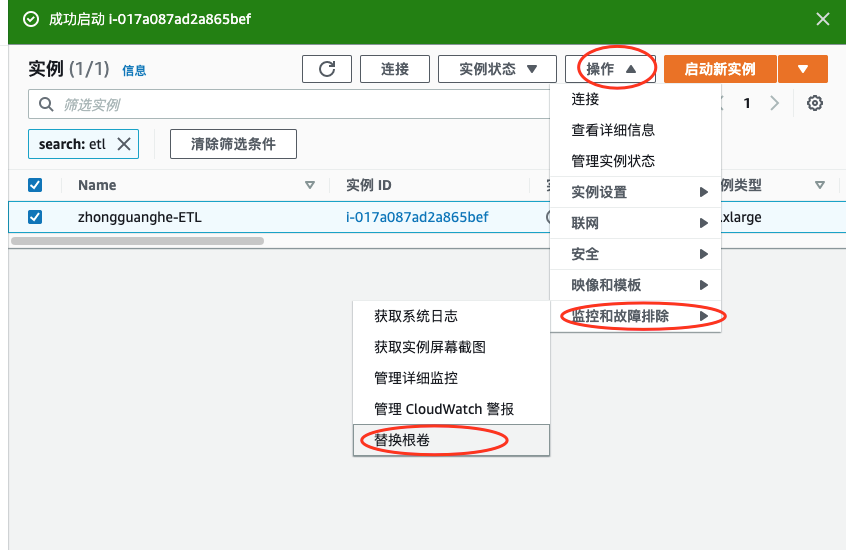
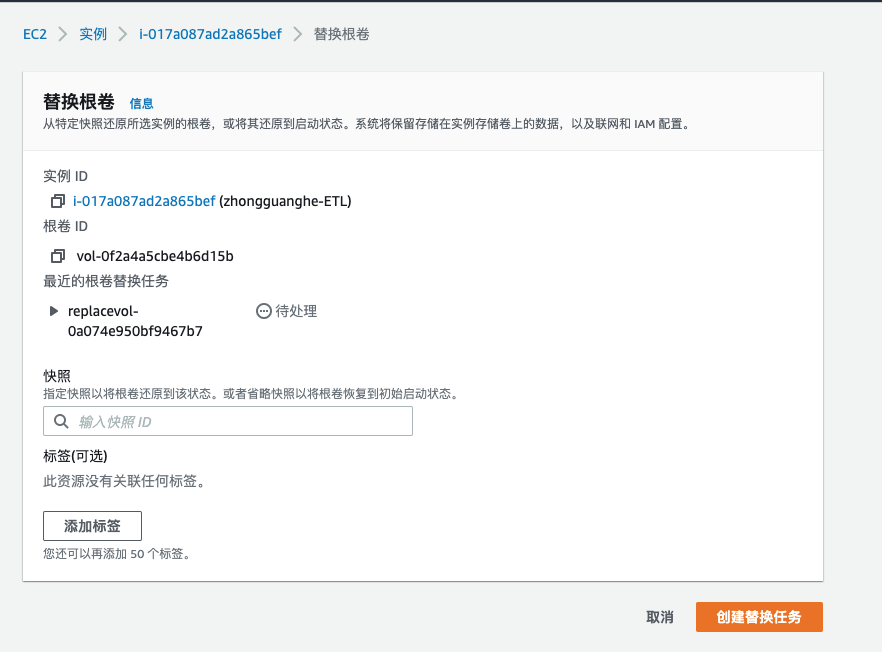
问题实例, 使用替换跟卷直接修复系统盘![修复原实例]()
![使用默认快照替换根卷]()
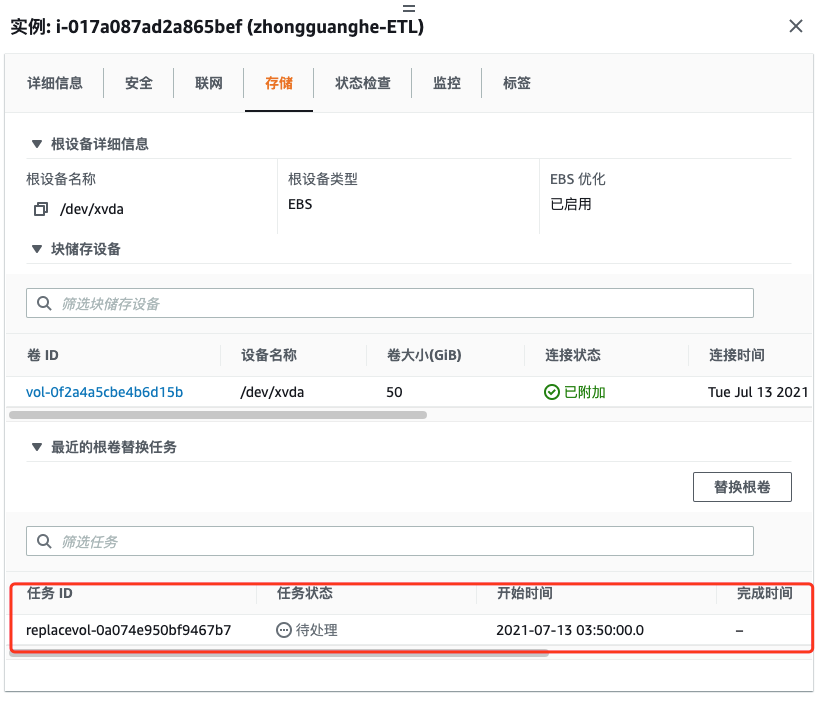
![进入更新状态]()
等待处理完成, 登录实例, 一切正常, 恢复至此结束

故障思考
- 这次运气比较好, LVM挂上直接识别了, 如果不识别那就惨了, 还需要恢复LVM, 这个肯定是个天坑
- 数据坚决不能直接下载到home目录, 或者每次初始化实例的时候, 一定记得将home挂载到数据盘
- 增加备份机制, 如果数据比较重要, 真的是需要多多备份, 以防不测
- 挂后台之后一定要最后再多多recheck一下, 避免做无用功, 比如这次的磁盘大小不对的问题