Mac初始化笔记

这几天整理笔记的时候发现自己收藏了一些关于如何调教 Mac 达到自己用着顺手的博文和笔记,心血来潮想着整理一下,免得杂乱不堪后续想查的时候无从下手

XCode Command Line Tools

1
xcode-select --install

如果上面的不能直接执行,参考这个博文:xcode-select --install 不能下载该软件的解决办法 - 三驾马车 - 博客园

使用 AppleID 登录:https://developer.apple.com/download/all/ 下载符合当前 Mac 的版本

iTerm2

iTerm2 比 Mac 自带的终端不知道好用多少倍,而且还是完全免费的!

安装

iTerm2 - macOS Terminal Replacement

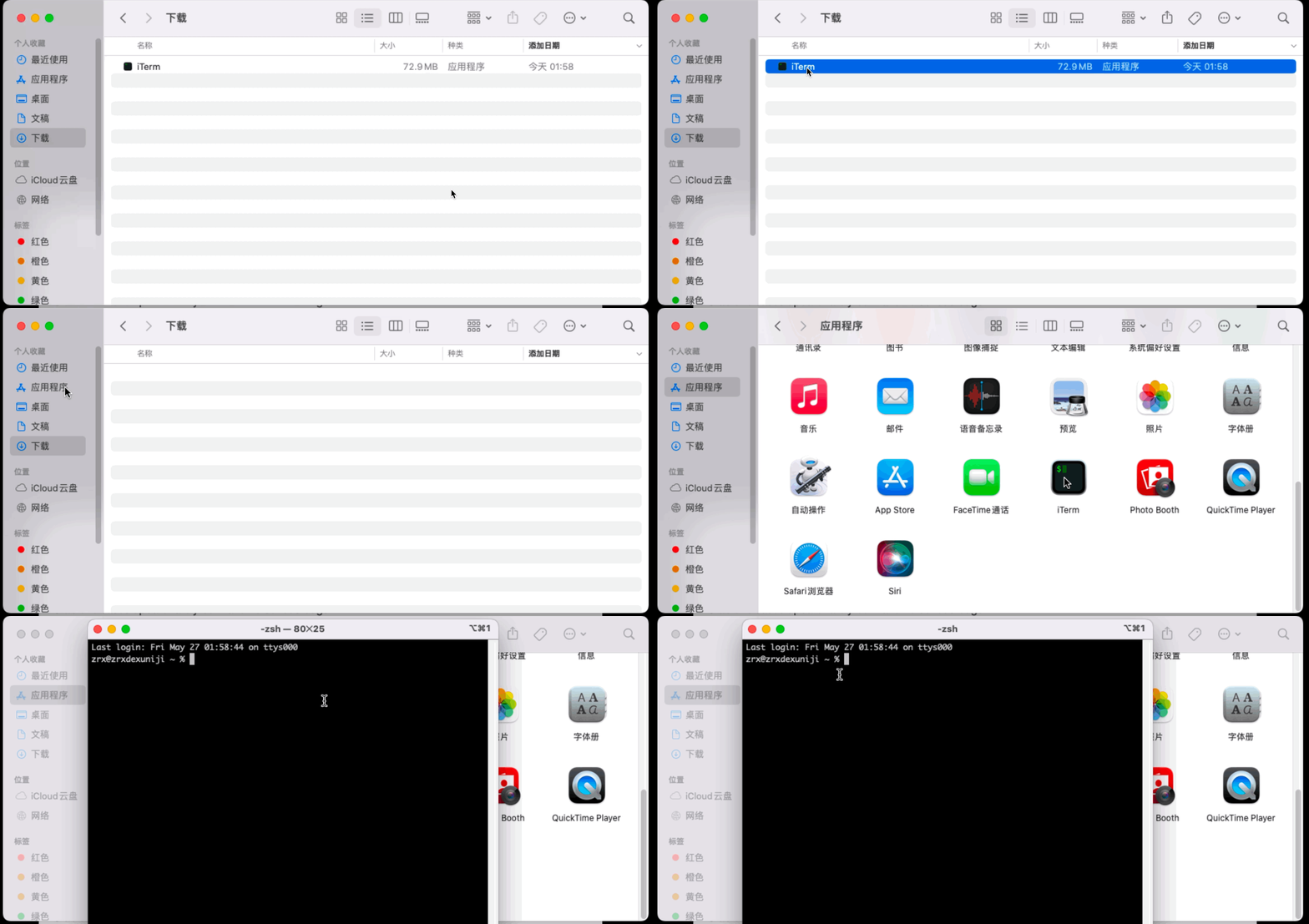
下载后直接拖到 应用程序 中即可,甚至不需要安装!

iTerm2 安装非常简单!

设置默认

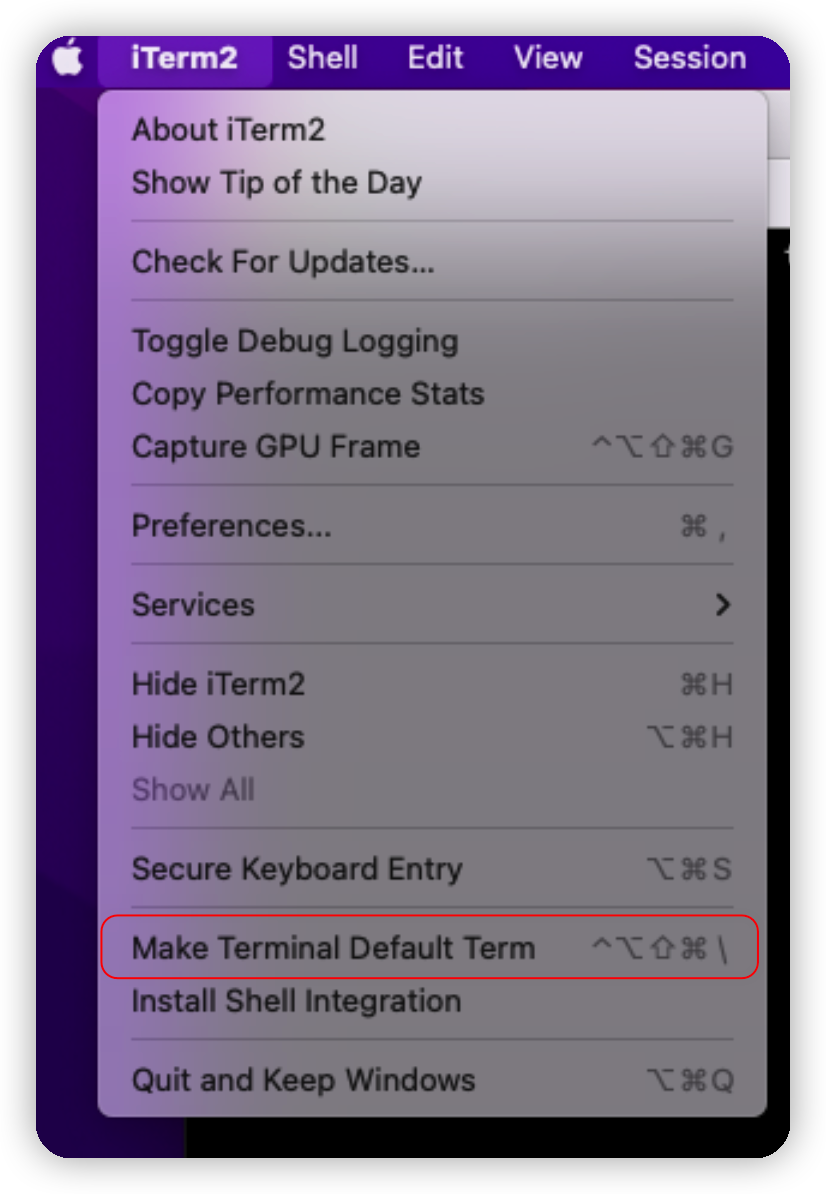
点击左上角,iTerm2 -> Make iTerm2 Default Term

设置为默认终端

开启全局快捷键

点击左上角 iTerm2 -> Perferences -> Keys -> Hotkey -> Show/hide iTerm2 with a system-wide hotkey 见下图

启用全局热键

这个功能开启后,可以通过 Alt + Space 组合键直接显示/隐藏 iTerm2

更换主题

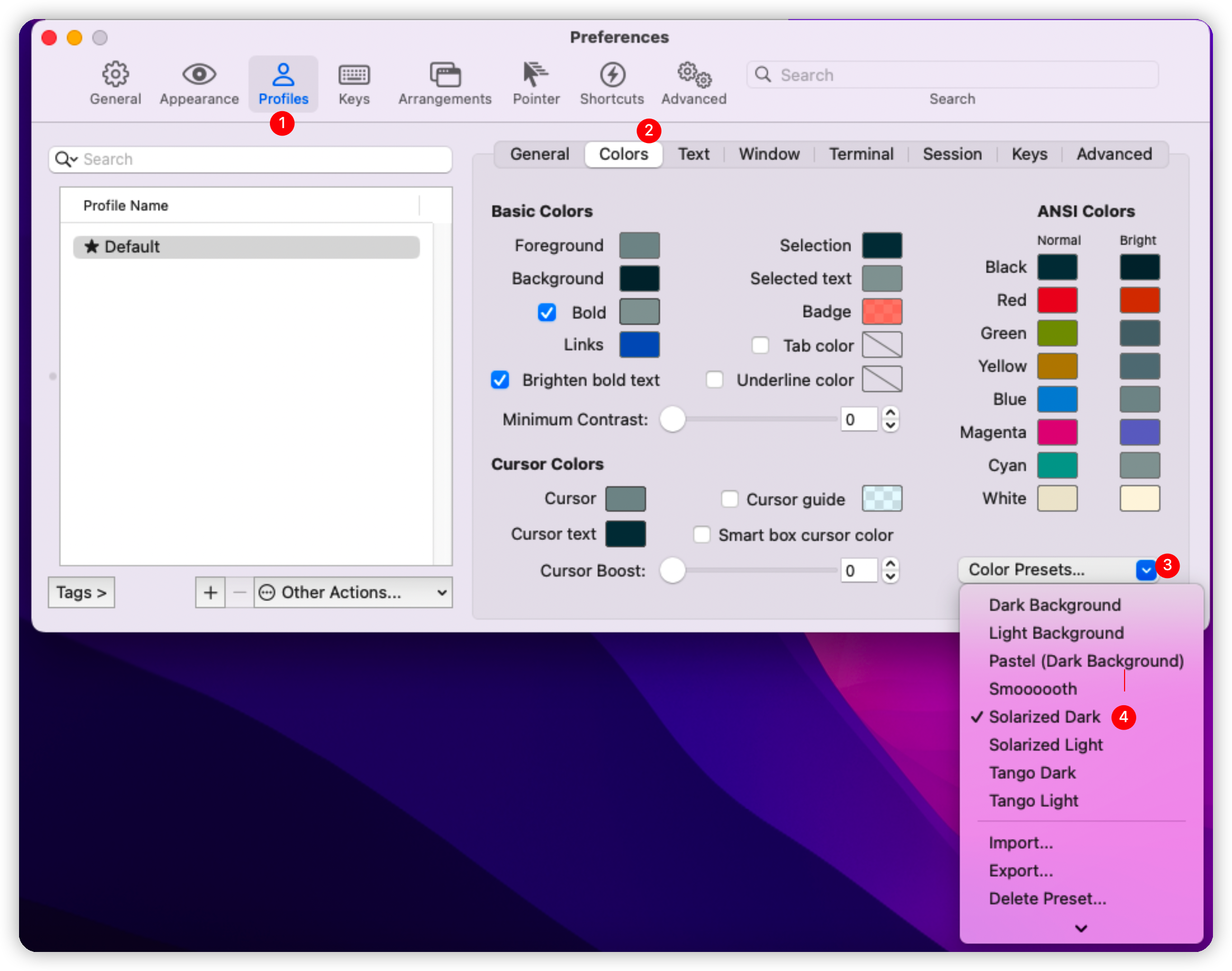
点击左上角 iTerm2 -> Perferences -> Profiles -> Colors -> Color Preset... -> Solarized Dark

切换主题

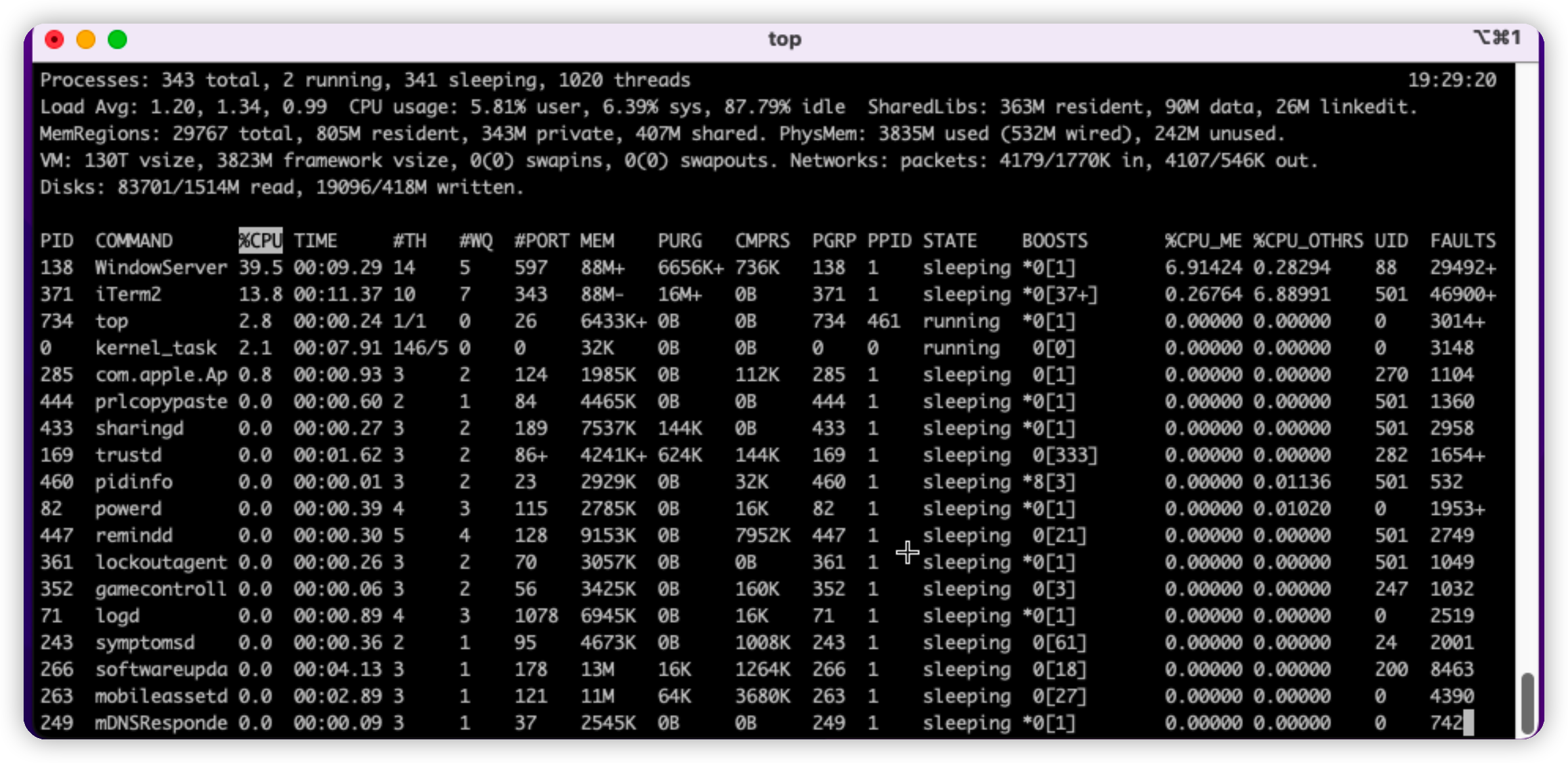
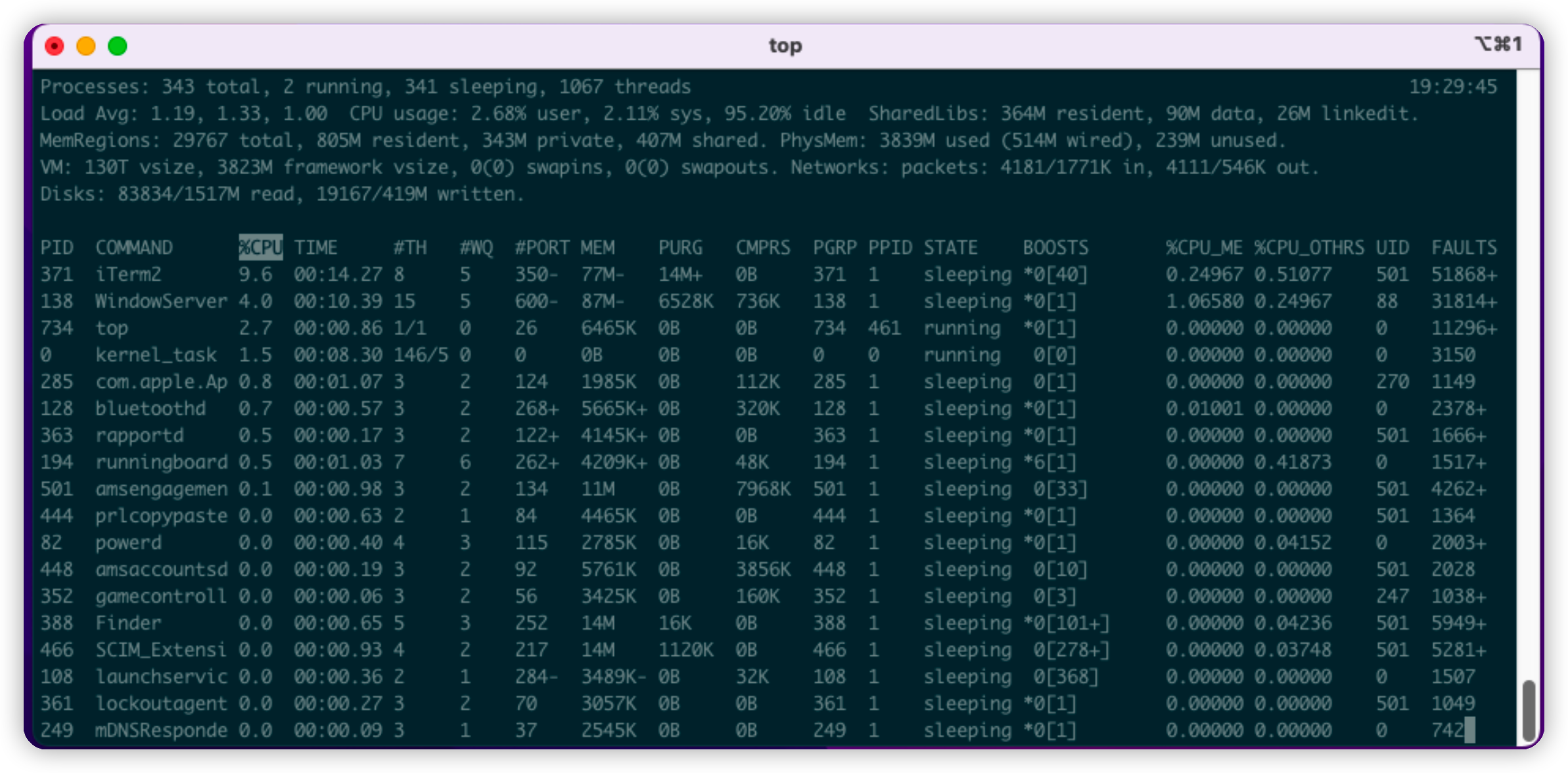
附两个主题的对比图:

Dark Backgroud
Solarized Dark

安装Oh-My-Zsh

在安装 Oh-My-Zsh 之前,需要先安装 XCode Command Line Tools

Oh My Zsh - a delightful & open source framework for Zsh

Oh My Zsh, 『 安装 & 配置 』 - 知乎

使用国内镜像安装

1
sh -c "$(curl -fsSL https://gitee.com/mirrors/oh-my-zsh/raw/master/tools/install.sh)"

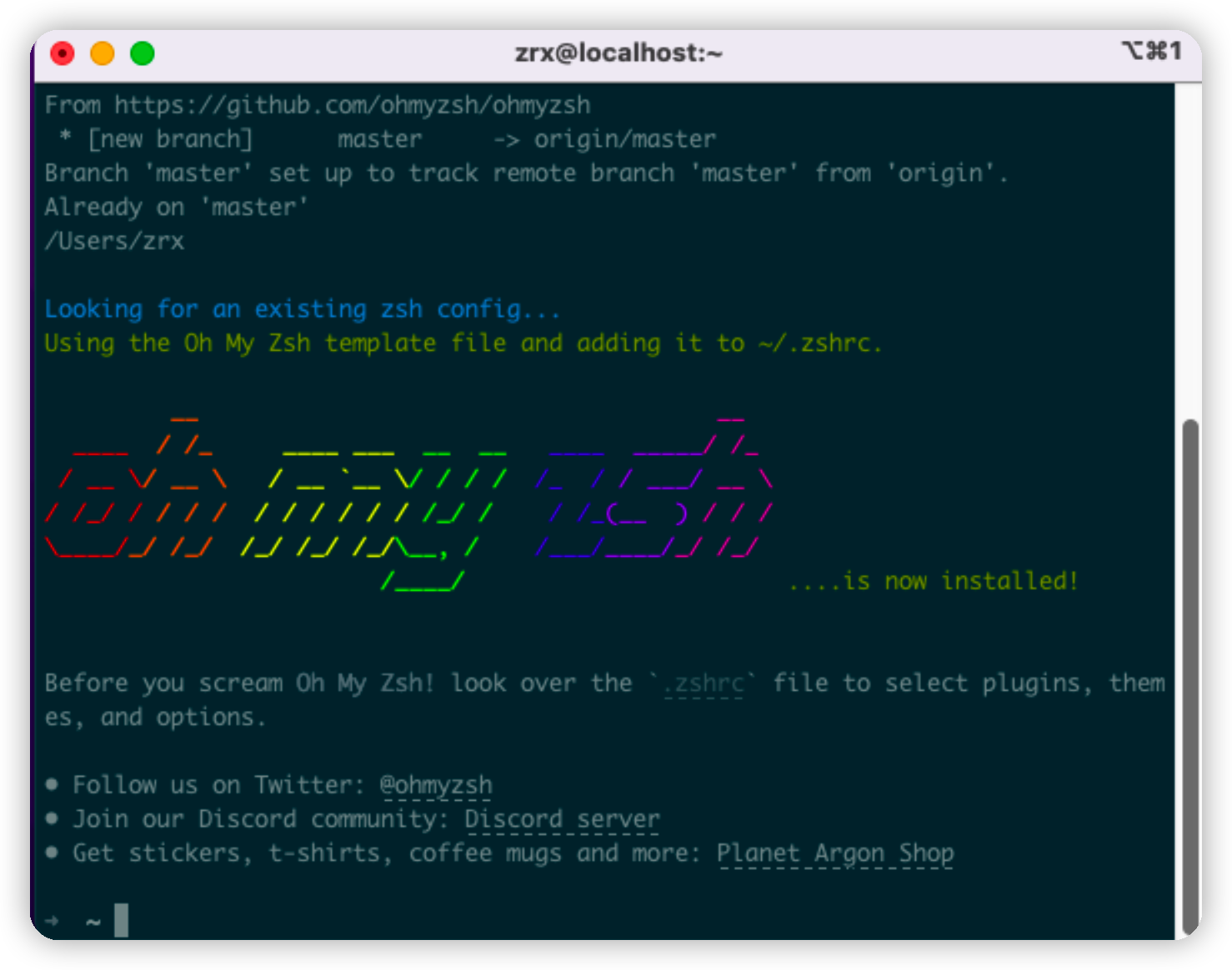
完成后

OhMyZsh安装完成

HomeBrew

在安装 HomeBrew 之前,需要先安装 XCode Command Line Tools

homebrew | 镜像站使用帮助 | 清华大学开源软件镜像站 | Tsinghua Open Source Mirror

1
2
3
4
5
6
7
8
9
10
11
12
13
14
15
16
17
18
19
20
21
22
23
24
25
26
27
28
29
30
31
32
33
34
35
36
37
38
39
40
41
42
43
44
45
46
# 设置环境变量
export HOMEBREW_BREW_GIT_REMOTE="https://mirrors.tuna.tsinghua.edu.cn/git/homebrew/brew.git"
export HOMEBREW_CORE_GIT_REMOTE="https://mirrors.tuna.tsinghua.edu.cn/git/homebrew/homebrew-core.git"
export HOMEBREW_BOTTLE_DOMAIN="https://mirrors.tuna.tsinghua.edu.cn/homebrew-bottles"

# 从本镜像下载安装脚本并安装 Homebrew / Linuxbrew
git clone --depth=1 https://mirrors.tuna.tsinghua.edu.cn/git/homebrew/install.git brew-install
/bin/bash brew-install/install.sh
rm -rf brew-install

# M1芯片专用
if [ "$(uname -m)" == "arm64" ];
then
test -r ~/.bash_profile && echo 'eval "$(/opt/homebrew/bin/brew shellenv)"' >> ~/.bash_profile
test -r ~/.zprofile && echo 'eval "$(/opt/homebrew/bin/brew shellenv)"' >> ~/.zprofile
fi

# 添加brew的路径到PATH
echo 'eval "$(/opt/homebrew/bin/brew shellenv)"' >> /Users/zrx/.zprofile
eval "$(/opt/homebrew/bin/brew shellenv)"

echo 'export HOMEBREW_BREW_GIT_REMOTE="https://mirrors.tuna.tsinghua.edu.cn/git/homebrew/brew.git"' >> /Users/zrx/.zprofile
echo 'export HOMEBREW_CORE_GIT_REMOTE="https://mirrors.tuna.tsinghua.edu.cn/git/homebrew/homebrew-core.git"' >> /Users/zrx/.zprofile
export HOMEBREW_BREW_GIT_REMOTE="https://mirrors.tuna.tsinghua.edu.cn/git/homebrew/brew.git"
export HOMEBREW_CORE_GIT_REMOTE="https://mirrors.tuna.tsinghua.edu.cn/git/homebrew/homebrew-core.git"

# 替换仓库上游
export HOMEBREW_BREW_GIT_REMOTE="https://mirrors.tuna.tsinghua.edu.cn/git/homebrew/brew.git"
brew update

# 或使用下面的几行命令自动设置Homebrew
export HOMEBREW_CORE_GIT_REMOTE="https://mirrors.tuna.tsinghua.edu.cn/git/homebrew/homebrew-core.git"
for tap in core cask{,-fonts,-drivers,-versions} command-not-found; do
brew tap --custom-remote --force-auto-update "homebrew/${tap}" "https://mirrors.tuna.tsinghua.edu.cn/git/homebrew/homebrew-${tap}.git"
done
brew update

# 添加Remote的Profile设置
test -r ~/.bash_profile && echo 'export HOMEBREW_BREW_GIT_REMOTE="https://mirrors.tuna.tsinghua.edu.cn/git/homebrew/brew.git"' >> ~/.bash_profile # bash
test -r ~/.bash_profile && echo 'export HOMEBREW_CORE_GIT_REMOTE="https://mirrors.tuna.tsinghua.edu.cn/git/homebrew/homebrew-core.git"' >> ~/.bash_profile
test -r ~/.profile && echo 'export HOMEBREW_BREW_GIT_REMOTE="https://mirrors.tuna.tsinghua.edu.cn/git/homebrew/brew.git"' >> ~/.profile
test -r ~/.profile && echo 'export HOMEBREW_CORE_GIT_REMOTE="https://mirrors.tuna.tsinghua.edu.cn/git/homebrew/homebrew-core.git"' >> ~/.profile

test -r ~/.zprofile && echo 'export HOMEBREW_BREW_GIT_REMOTE="https://mirrors.tuna.tsinghua.edu.cn/git/homebrew/brew.git"' >> ~/.zprofile # zsh
test -r ~/.zprofile && echo 'export HOMEBREW_CORE_GIT_REMOTE="https://mirrors.tuna.tsinghua.edu.cn/git/homebrew/homebrew-core.git"' >> ~/.zprofile

GNU-Tools

在安装 GNU-Tools 之前,需要先安装 HomeBrew

Install and Use GNU Command Line Tools on macOS/OS X - Top Bug Net

Mac OS X安装gnu-sed等命令行工具_星际穿越者的博客-CSDN博客_gnu sed

1
2
3
4
5
6
7
8
9
10
11
12
13
14
15
16
17
18
19
20
21
22
23
24
25
26
27
28
29
30
31
32
33
34
35
36
37
38
39
40
41
42
43
44
45
46
47
48
49
50
51
brew update --preinstall
# Install GNU core utilities (those that come with OS X are outdated)
brew install coreutils

# Install GNU `find`, `locate`, `updatedb`, and `xargs`, g-prefixed
brew install findutils

# Install Bash 4
brew install bash

# Install gnu-tar, g-prefixed
brew install gnu-tar

# Install pcregrep. Learn it, live it, love it.
brew install pcre

brew install gawk
brew install gnu-indent
brew install gnu-sed
brew install gnu-tar
brew install gnu-which
brew install gnutls
brew install grep
brew install gzip
brew install screen
brew install watch
brew install wdiff
brew install wget

# 更新版本
brew install bash
brew install emacs
brew install gdb
brew install gpatch
brew install m4
brew install make
brew install nano

# 安装额外支持
brew install file-formula
brew install git
brew install less
brew install openssh
brew install perl518 # must run "brew tap homebrew/versions" first!
brew install python
brew install rsync
brew install svn
brew install unzip
brew install vim
brew install macvim
brew install zsh

lrzsz

Mac

1
2
brew install lrzsz
mkdir -p ~/bin

添加 ~/bin/iterm2-recv-zmodem.sh 文件

1
2
3
4
5
6
7
8
9
10
11
12
13
14
15
16
17
18
19
20
21
22
23
24
25
26
27
28
29
#!/bin/bash
# Author: Matt Mastracci (matthew@mastracci.com)
# AppleScript from http://stackoverflow.com/questions/4309087/cancel-button-on-osascript-in-a-bash-script
# licensed under cc-wiki with attribution required
# Remainder of script public domain

osascript -e 'tell application "iTerm2" to version' > /dev/null 2>&1 && NAME=iTerm2 || NAME=iTerm
if [[ $NAME = "iTerm" ]]; then
FILE=`osascript -e 'tell application "iTerm" to activate' -e 'tell application "iTerm" to set thefile to choose folder with prompt "Choose a folder to place received files in"' -e "do shell script (\"echo \"&(quoted form of POSIX path of thefile as Unicode text)&\"\")"`
else
FILE=`osascript -e 'tell application "iTerm2" to activate' -e 'tell application "iTerm2" to set thefile to choose folder with prompt "Choose a folder to place received files in"' -e "do shell script (\"echo \"&(quoted form of POSIX path of thefile as Unicode text)&\"\")"`
fi

if [[ $FILE = "" ]]; then
echo Cancelled.
# Send ZModem cancel
echo -e \\x18\\x18\\x18\\x18\\x18
sleep 1
echo
echo \# Cancelled transfer
else
cd "$FILE"
/usr/local/bin/rz -E -e -b
sleep 1
echo
echo
echo \# Sent \-\> $FILE
fi

添加 ~/bin/iterm2-send-zmodem.sh 文件

1
2
3
4
5
6
7
8
9
10
11
12
13
14
15
16
17
18
19
20
21
22
23
24
25
#!/bin/bash
# Author: Matt Mastracci (matthew@mastracci.com)
# AppleScript from http://stackoverflow.com/questions/4309087/cancel-button-on-osascript-in-a-bash-script
# licensed under cc-wiki with attribution required
# Remainder of script public domain

osascript -e 'tell application "iTerm2" to version' > /dev/null 2>&1 && NAME=iTerm2 || NAME=iTerm
if [[ $NAME = "iTerm" ]]; then
FILE=`osascript -e 'tell application "iTerm" to activate' -e 'tell application "iTerm" to set thefile to choose file with prompt "Choose a file to send"' -e "do shell script (\"echo \"&(quoted form of POSIX path of thefile as Unicode text)&\"\")"`
else
FILE=`osascript -e 'tell application "iTerm2" to activate' -e 'tell application "iTerm2" to set thefile to choose file with prompt "Choose a file to send"' -e "do shell script (\"echo \"&(quoted form of POSIX path of thefile as Unicode text)&\"\")"`
fi
if [[ $FILE = "" ]]; then
echo Cancelled.
# Send ZModem cancel
echo -e \\x18\\x18\\x18\\x18\\x18
sleep 1
echo
echo \# Cancelled transfer
else
/usr/local/bin/sz "$FILE" -e -b
sleep 1
echo
echo \# Received $FILE
fi

执行 chmod +x ~/bin/iterm2-* 增加可执行权限

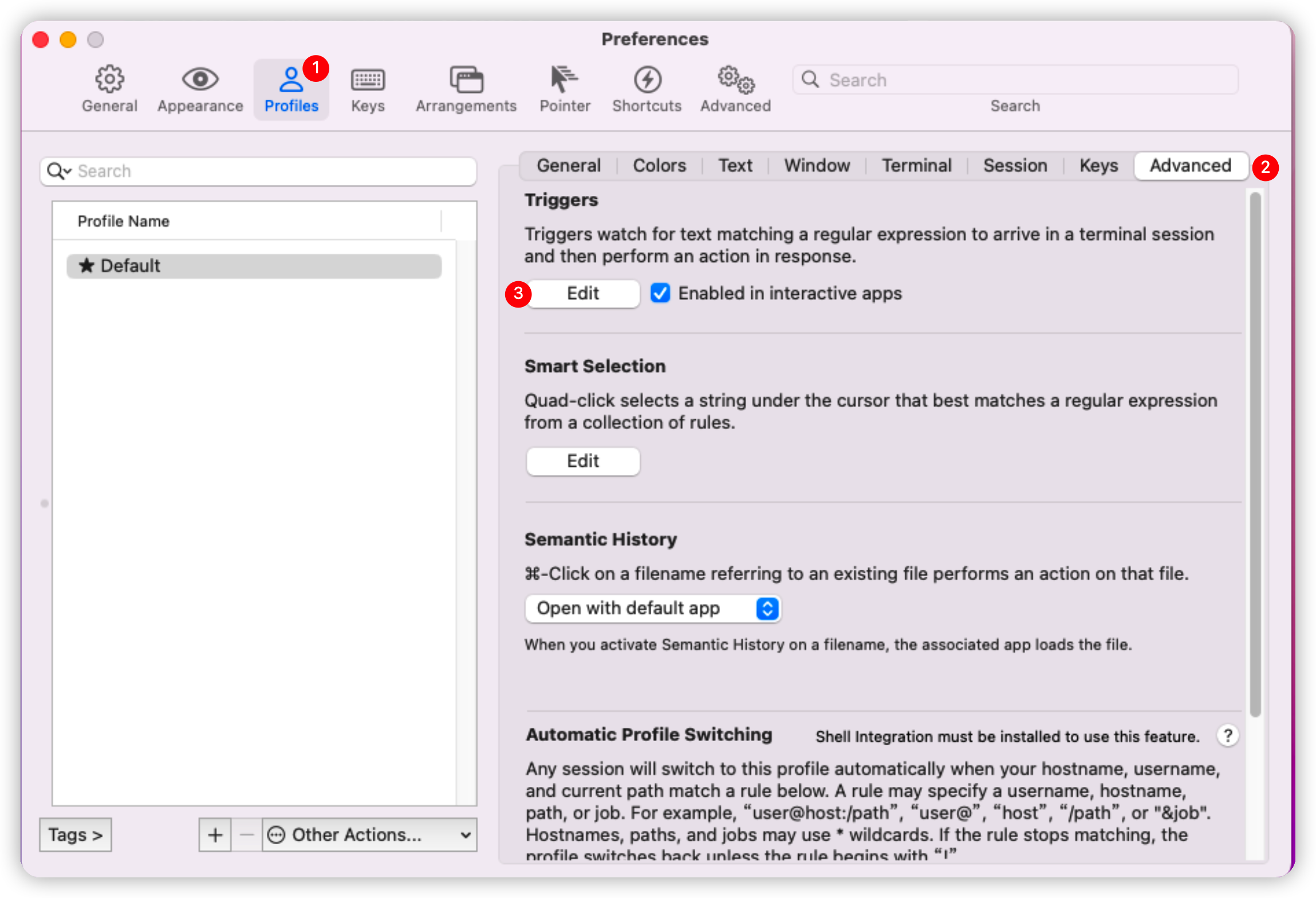
点击 iTerm2 的设置界面 Perferences -> Profiles -> Advanced -> TriggersEdit 按钮

设置iTerm2触发器

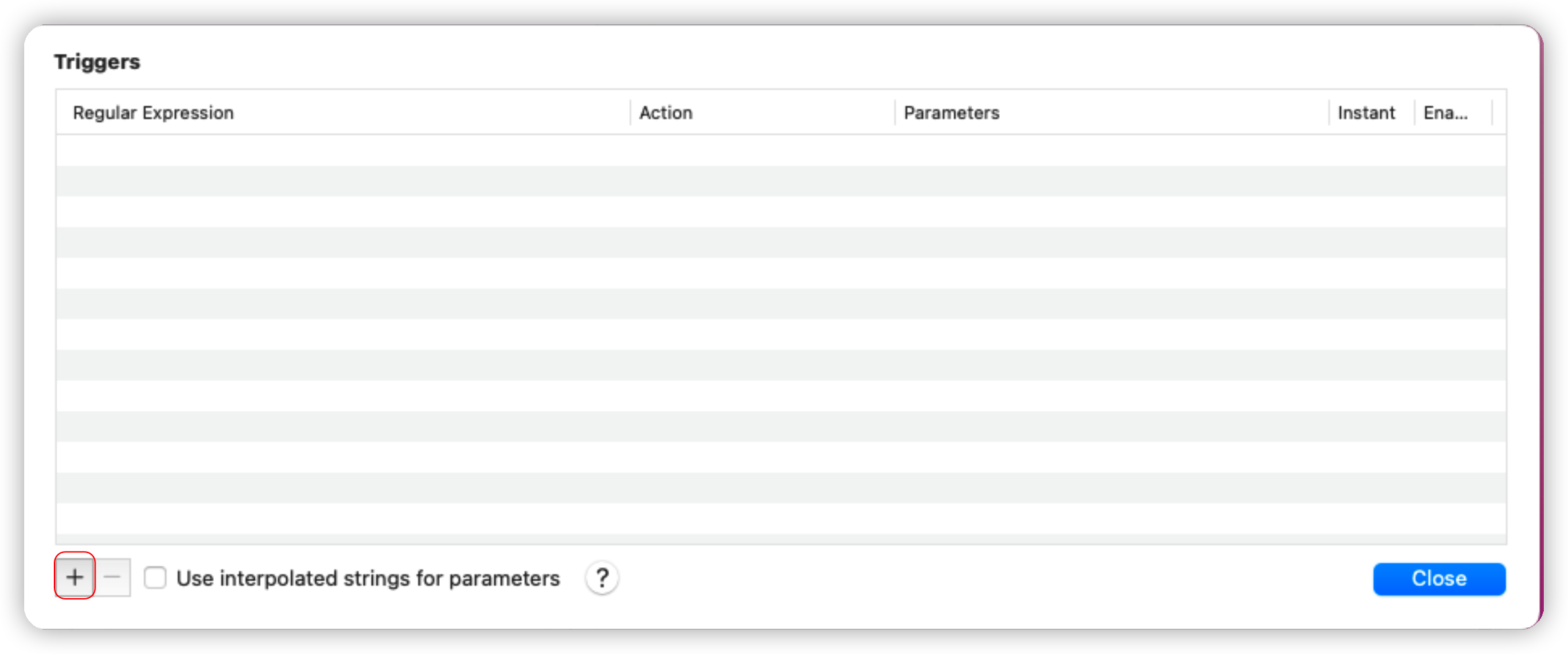
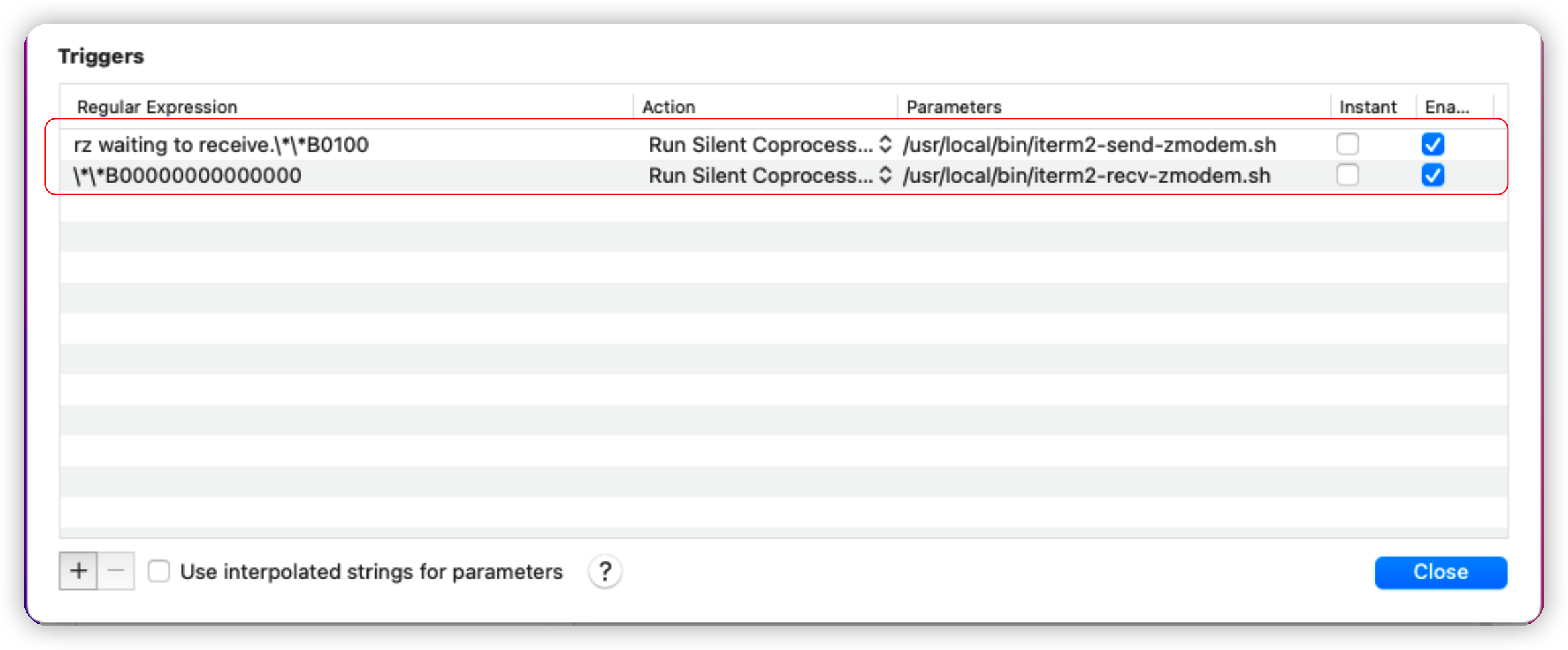
点击添加,按照如下内容添加两个 rz 和 sz 的相应触发器

1
2
3
4
5
6
7
8
Regular expression: rz waiting to receive.\*\*B0100
Action: Run Silent Coprocess
Parameters: /usr/local/bin/iterm2-send-zmodem.sh


Regular expression: \*\*B00000000000000
Action: Run Silent Coprocess
Parameters: /usr/local/bin/iterm2-recv-zmodem.sh
添加触发器之前
iTerm2添加触发器后

Server

1
2
3
4
# centos 
yum install lrzsz
# ubuntu
apt-get install lrzsz

neofetch

Neofetch:在终端中显示 Linux 系统信息 - 知乎

Customizing Info · dylanaraps/neofetch Wiki

Mac系统中终端“图形化”查系统信息neofetch_ITKEY_的博客-CSDN博客

1
brew install neofetch

以下是自己翻译和配置的 ~/.config/neofetch/config.conf 文件内容

点击展开
1
2
3
4
5
6
7
8
9
10
11
12
13
14
15
16
17
18
19
20
21
22
23
24
25
26
27
28
29
30
31
32
33
34
35
36
37
38
39
40
41
42
43
44
45
46
47
48
49
50
51
52
53
54
55
56
57
58
59
60
61
62
63
64
65
66
67
68
69
70
71
72
73
74
75
76
77
78
79
80
81
82
83
84
85
86
87
88
89
90
91
92
93
94
95
96
97
98
99
100
101
102
103
104
105
106
107
108
109
110
111
112
113
114
115
116
117
118
119
120
121
122
123
124
125
126
127
128
129
130
131
132
133
134
135
136
137
138
139
140
141
142
143
144
145
146
147
148
149
150
151
152
153
154
155
156
157
158
159
160
161
162
163
164
165
166
167
168
169
170
171
172
173
174
175
176
177
178
179
180
181
182
183
184
185
186
187
188
189
190
191
192
193
194
195
196
197
198
199
200
201
202
203
204
205
206
207
208
209
210
211
212
213
214
215
216
217
218
219
220
221
222
223
224
225
226
227
228
229
230
231
232
233
234
235
236
237
238
239
240
241
242
243
244
245
246
247
248
249
250
251
252
253
254
255
256
257
258
259
260
261
262
263
264
265
266
267
268
269
270
271
272
273
274
275
276
277
278
279
280
281
282
283
284
285
286
287
288
289
290
291
292
293
294
295
296
297
298
299
300
301
302
303
304
305
306
307
308
309
310
311
312
313
314
315
316
317
318
319
320
321
322
323
324
325
326
327
328
329
330
331
332
333
334
335
336
337
338
339
340
341
342
343
344
345
346
347
348
349
350
351
352
353
354
355
356
357
358
359
360
361
362
363
364
365
366
367
368
369
370
371
372
373
374
375
376
377
378
379
380
381
382
383
384
385
386
387
388
389
390
391
392
393
394
395
396
397
398
399
400
401
402
403
404
405
406
407
408
409
410
411
412
413
414
415
416
417
418
419
420
421
422
423
424
425
426
427
428
429
430
431
432
433
434
435
436
437
438
439
440
441
442
443
444
445
446
447
448
449
450
451
452
453
454
455
456
457
458
459
460
461
462
463
464
465
466
467
468
469
470
471
472
473
474
475
476
477
478
479
480
481
482
483
484
485
486
487
488
489
490
491
492
493
494
495
496
497
498
499
500
501
502
503
504
505
506
507
508
509
510
511
512
513
514
515
516
517
518
519
520
521
522
523
524
525
526
527
528
529
530
531
532
533
534
535
536
537
538
539
540
541
542
543
544
545
546
547
548
549
550
551
552
553
554
555
556
557
558
559
560
561
562
563
564
565
566
567
568
569
570
571
572
573
574
575
576
577
578
579
580
581
582
583
584
585
586
587
588
589
590
591
592
593
594
595
596
597
598
599
600
601
602
603
604
605
606
607
608
609
610
611
612
613
614
615
616
617
618
619
620
621
622
623
624
625
626
627
628
629
630
631
632
633
634
635
636
637
638
639
640
641
642
643
644
645
646
647
648
649
650
651
652
653
654
655
656
657
658
659
660
661
662
663
664
665
666
667
668
669
670
671
672
673
674
675
676
677
678
679
680
681
682
683
684
685
686
687
688
689
690
691
692
693
694
695
696
697
698
699
700
701
702
703
704
705
706
707
708
709
710
711
712
713
714
715
716
717
718
719
720
721
722
723
724
725
726
727
728
729
730
731
732
733
734
735
736
737
738
739
740
741
742
743
744
745
746
747
748
749
750
751
752
753
754
755
756
757
758
759
760
761
762
763
764
765
766
767
768
769
770
771
772
773
774
775
776
777
778
779
780
781
782
783
784
785
786
787
788
789
790
791
792
793
794
795
796
797
798
799
800
801
802
803
804
805
806
807
808
809
810
811
812
813
814
815
816
817
818
819
820
821
822
823
824
825
826
827
828
829
830
831
832
833
834
835
836
837
838
839
840
841
842
843
844
845
846
847
848
849
850
851
852
853
854
855
856
857
858
859
860
861
862
863
864
865
# See this wiki page for more info:
# https://github.com/dylanaraps/neofetch/wiki/Customizing-Info
print_info() {
info title
info underline

info "操作系统" distro
info "型号信息" model
info "内核版本" kernel
info "开机时间" uptime
# info "已 安 装" packages
info "Sh 类 型" shell
info "分 辨 率" resolution
# info "DE" de
# info "WM" wm
# info "WM Theme" wm_theme
# info "Theme" theme
# info "Icons" icons
info "终端名称" term
info "终端字体" term_font
info "CPU信 息" cpu
info "GPU信 息" gpu
info "内存信息" memory

# info "GPU Driver" gpu_driver # Linux/macOS only
# info "CPU Usage" cpu_usage
# info "磁盘信息" disk
info "电池信息" battery
# info "Font" font
# info "Song" song
# [[ "$player" ]] && prin "Music Player" "$player"
info "内网地址" local_ip
info "公网地址" public_ip
# info "Users" users
# info "Locale" locale # This only works on glibc systems.

# info cols
}

# Title


# Hide/Show Fully qualified domain name.
#
# Default: 'off'
# Values: 'on', 'off'
# Flag: --title_fqdn
title_fqdn="off"


# Kernel


# Shorten the output of the kernel function.
#
# Default: 'on'
# Values: 'on', 'off'
# Flag: --kernel_shorthand
# Supports: Everything except *BSDs (except PacBSD and PC-BSD)
#
# Example:
# on: '4.8.9-1-ARCH'
# off: 'Linux 4.wa 7745
# .9-1-ARCH'
kernel_shorthand="on"


# Distro


# Shorten the output of the distro function
#
# Default: 'off'
# Values: 'on', 'tiny', 'off'
# Flag: --distro_shorthand
# Supports: Everything except Windows and Haiku
distro_shorthand="off"

# Show/Hide OS Architecture.
# Show 'x86_64', 'x86' and etc in 'Distro:' output.
#
# Default: 'on'
# Values: 'on', 'off'
# Flag: --os_arch
#
# Example:
# on: 'Arch Linux x86_64'
# off: 'Arch Linux'
os_arch="on"


# Uptime


# Shorten the output of the uptime function
#
# Default: 'on'
# Values: 'on', 'tiny', 'off'
# Flag: --uptime_shorthand
#
# Example:
# on: '2 days, 10 hours, 3 mins'
# tiny: '2d 10h 3m'
# off: '2 days, 10 hours, 3 minutes'
uptime_shorthand="on"


# Memory


# Show memory pecentage in output.
#
# Default: 'off'
# Values: 'on', 'off'
# Flag: --memory_percent
#
# Example:
# on: '1801MiB / 7881MiB (22%)'
# off: '1801MiB / 7881MiB'
memory_percent="on"

# Change memory output unit.
#
# Default: 'mib'
# Values: 'kib', 'mib', 'gib'
# Flag: --memory_unit
#
# Example:
# kib '1020928KiB / 7117824KiB'
# mib '1042MiB / 6951MiB'
# gib: ' 0.98GiB / 6.79GiB'
memory_unit="gib"


# Packages


# Show/Hide Package Manager names.
#
# Default: 'tiny'
# Values: 'on', 'tiny' 'off'
# Flag: --package_managers
#
# Example:
# on: '998 (pacman), 8 (flatpak), 4 (snap)'
# tiny: '908 (pacman, flatpak, snap)'
# off: '908'
package_managers="on"


# Shell


# Show the path to $SHELL
#
# Default: 'off'
# Values: 'on', 'off'
# Flag: --shell_path
#
# Example:
# on: '/bin/bash'
# off: 'bash'
shell_path="on"

# Show $SHELL version
#
# Default: 'on'
# Values: 'on', 'off'
# Flag: --shell_version
#
# Example:
# on: 'bash 4.4.5'
# off: 'bash'
shell_version="on"


# CPU


# CPU speed type
#
# Default: 'bios_limit'
# Values: 'scaling_cur_freq', 'scaling_min_freq', 'scaling_max_freq', 'bios_limit'.
# Flag: --speed_type
# Supports: Linux with 'cpufreq'
# NOTE: Any file in '/sys/devices/system/cpu/cpu0/cpufreq' can be used as a value.
speed_type="bios_limit"

# CPU speed shorthand
#
# Default: 'off'
# Values: 'on', 'off'.
# Flag: --speed_shorthand
# NOTE: This flag is not supported in systems with CPU speed less than 1 GHz
#
# Example:
# on: 'i7-6500U (4) @ 3.1GHz'
# off: 'i7-6500U (4) @ 3.100GHz'
speed_shorthand="off"

# Enable/Disable CPU brand in output.
#
# Default: 'on'
# Values: 'on', 'off'
# Flag: --cpu_brand
#
# Example:
# on: 'Intel i7-6500U'
# off: 'i7-6500U (4)'
cpu_brand="on"

# CPU Speed
# Hide/Show CPU speed.
#
# Default: 'on'
# Values: 'on', 'off'
# Flag: --cpu_speed
#
# Example:
# on: 'Intel i7-6500U (4) @ 3.1GHz'
# off: 'Intel i7-6500U (4)'
cpu_speed="on"

# CPU Cores
# Display CPU cores in output
#
# Default: 'logical'
# Values: 'logical', 'physical', 'off'
# Flag: --cpu_cores
# Support: 'physical' doesn't work on BSD.
#
# Example:
# logical: 'Intel i7-6500U (4) @ 3.1GHz' (All virtual cores)
# physical: 'Intel i7-6500U (2) @ 3.1GHz' (All physical cores)
# off: 'Intel i7-6500U @ 3.1GHz'
cpu_cores="logical"

# CPU Temperature
# Hide/Show CPU temperature.
# Note the temperature is added to the regular CPU function.
#
# Default: 'off'
# Values: 'C', 'F', 'off'
# Flag: --cpu_temp
# Supports: Linux, BSD
# NOTE: For FreeBSD and NetBSD-based systems, you'll need to enable
# coretemp kernel module. This only supports newer Intel processors.
#
# Example:
# C: 'Intel i7-6500U (4) @ 3.1GHz [27.2°C]'
# F: 'Intel i7-6500U (4) @ 3.1GHz [82.0°F]'
# off: 'Intel i7-6500U (4) @ 3.1GHz'
cpu_temp="on"


# GPU


# Enable/Disable GPU Brand
#
# Default: 'on'
# Values: 'on', 'off'
# Flag: --gpu_brand
#
# Example:
# on: 'AMD HD 7950'
# off: 'HD 7950'
gpu_brand="on"

# Which GPU to display
#
# Default: 'all'
# Values: 'all', 'dedicated', 'integrated'
# Flag: --gpu_type
# Supports: Linux
#
# Example:
# all:
# GPU1: AMD HD 7950
# GPU2: Intel Integrated Graphics
#
# dedicated:
# GPU1: AMD HD 7950
#
# integrated:
# GPU1: Intel Integrated Graphics
gpu_type="all"


# Resolution


# Display refresh rate next to each monitor
# Default: 'off'
# Values: 'on', 'off'
# Flag: --refresh_rate
# Supports: Doesn't work on Windows.
#
# Example:
# on: '1920x1080 @ 60Hz'
# off: '1920x1080'
refresh_rate="on"


# Gtk Theme / Icons / Font


# Shorten output of GTK Theme / Icons / Font
#
# Default: 'off'
# Values: 'on', 'off'
# Flag: --gtk_shorthand
#
# Example:
# on: 'Numix, Adwaita'
# off: 'Numix [GTK2], Adwaita [GTK3]'
gtk_shorthand="off"


# Enable/Disable gtk2 Theme / Icons / Font
#
# Default: 'on'
# Values: 'on', 'off'
# Flag: --gtk2
#
# Example:
# on: 'Numix [GTK2], Adwaita [GTK3]'
# off: 'Adwaita [GTK3]'
gtk2="on"

# Enable/Disable gtk3 Theme / Icons / Font
#
# Default: 'on'
# Values: 'on', 'off'
# Flag: --gtk3
#
# Example:
# on: 'Numix [GTK2], Adwaita [GTK3]'
# off: 'Numix [GTK2]'
gtk3="on"


# IP Address


# Website to ping for the public IP
#
# Default: 'http://ident.me'
# Values: 'url'
# Flag: --ip_host
public_ip_host="http://ident.me"

# Public IP timeout.
#
# Default: '2'
# Values: 'int'
# Flag: --ip_timeout
public_ip_timeout=2


# Desktop Environment


# Show Desktop Environment version
#
# Default: 'on'
# Values: 'on', 'off'
# Flag: --de_version
de_version="on"


# Disk


# Which disks to display.
# The values can be any /dev/sdXX, mount point or directory.
# NOTE: By default we only show the disk info for '/'.
#
# Default: '/'
# Values: '/', '/dev/sdXX', '/path/to/drive'.
# Flag: --disk_show
#
# Example:
# disk_show=('/' '/dev/sdb1'):
# 'Disk (/): 74G / 118G (66%)'
# 'Disk (/mnt/Videos): 823G / 893G (93%)'
#
# disk_show=('/'):
# 'Disk (/): 74G / 118G (66%)'
#
disk_show=('/')

# Disk subtitle.
# What to append to the Disk subtitle.
#
# Default: 'mount'
# Values: 'mount', 'name', 'dir', 'none'
# Flag: --disk_subtitle
#
# Example:
# name: 'Disk (/dev/sda1): 74G / 118G (66%)'
# 'Disk (/dev/sdb2): 74G / 118G (66%)'
#
# mount: 'Disk (/): 74G / 118G (66%)'
# 'Disk (/mnt/Local Disk): 74G / 118G (66%)'
# 'Disk (/mnt/Videos): 74G / 118G (66%)'
#
# dir: 'Disk (/): 74G / 118G (66%)'
# 'Disk (Local Disk): 74G / 118G (66%)'
# 'Disk (Videos): 74G / 118G (66%)'
#
# none: 'Disk: 74G / 118G (66%)'
# 'Disk: 74G / 118G (66%)'
disk_subtitle="mount"

# Disk percent.
# Show/Hide disk percent.
#
# Default: 'on'
# Values: 'on', 'off'
# Flag: --disk_percent
#
# Example:
# on: 'Disk (/): 74G / 118G (66%)'
# off: 'Disk (/): 74G / 118G'
disk_percent="on"


# Song


# Manually specify a music player.
#
# Default: 'auto'
# Values: 'auto', 'player-name'
# Flag: --music_player
#
# Available values for 'player-name':
#
# amarok
# audacious
# banshee
# bluemindo
# clementine
# cmus
# deadbeef
# deepin-music
# dragon
# elisa
# exaile
# gnome-music
# gmusicbrowser
# gogglesmm
# guayadeque
# io.elementary.music
# iTunes
# juk
# lollypop
# mocp
# mopidy
# mpd
# muine
# netease-cloud-music
# olivia
# playerctl
# pogo
# pragha
# qmmp
# quodlibet
# rhythmbox
# sayonara
# smplayer
# spotify
# strawberry
# tauonmb
# tomahawk
# vlc
# xmms2d
# xnoise
# yarock
music_player="auto"

# Format to display song information.
#
# Default: '%artist% - %album% - %title%'
# Values: '%artist%', '%album%', '%title%'
# Flag: --song_format
#
# Example:
# default: 'Song: Jet - Get Born - Sgt Major'
song_format="%artist% - %album% - %title%"

# Print the Artist, Album and Title on separate lines
#
# Default: 'off'
# Values: 'on', 'off'
# Flag: --song_shorthand
#
# Example:
# on: 'Artist: The Fratellis'
# 'Album: Costello Music'
# 'Song: Chelsea Dagger'
#
# off: 'Song: The Fratellis - Costello Music - Chelsea Dagger'
song_shorthand="off"

# 'mpc' arguments (specify a host, password etc).
#
# Default: ''
# Example: mpc_args=(-h HOST -P PASSWORD)
mpc_args=()


# Text Colors


# Text Colors
#
# Default: 'distro'
# Values: 'distro', 'num' 'num' 'num' 'num' 'num' 'num'
# Flag: --colors
#
# Each number represents a different part of the text in
# this order: 'title', '@', 'underline', 'subtitle', 'colon', 'info'
#
# Example:
# colors=(distro) - Text is colored based on Distro colors.
# colors=(4 6 1 8 8 6) - Text is colored in the order above.
colors=(distro)


# Text Options


# Toggle bold text
#
# Default: 'on'
# Values: 'on', 'off'
# Flag: --bold
bold="on"

# Enable/Disable Underline
#
# Default: 'on'
# Values: 'on', 'off'
# Flag: --underline
underline_enabled="on"

# Underline character
#
# Default: '-'
# Values: 'string'
# Flag: --underline_char
underline_char="-"


# Info Separator
# Replace the default separator with the specified string.
#
# Default: ':'
# Flag: --separator
#
# Example:
# separator="->": 'Shell-> bash'
# separator=" =": 'WM = dwm'
separator=":"


# Color Blocks


# Color block range
# The range of colors to print.
#
# Default: '0', '15'
# Values: 'num'
# Flag: --block_range
#
# Example:
#
# Display colors 0-7 in the blocks. (8 colors)
# neofetch --block_range 0 7
#
# Display colors 0-15 in the blocks. (16 colors)
# neofetch --block_range 0 15
block_range=(0 15)

# Toggle color blocks
#
# Default: 'on'
# Values: 'on', 'off'
# Flag: --color_blocks
color_blocks="on"

# Color block width in spaces
#
# Default: '3'
# Values: 'num'
# Flag: --block_width
block_width=3

# Color block height in lines
#
# Default: '1'
# Values: 'num'
# Flag: --block_height
block_height=1

# Color Alignment
#
# Default: 'auto'
# Values: 'auto', 'num'
# Flag: --col_offset
#
# Number specifies how far from the left side of the terminal (in spaces) to
# begin printing the columns, in case you want to e.g. center them under your
# text.
# Example:
# col_offset="auto" - Default behavior of neofetch
# col_offset=7 - Leave 7 spaces then print the colors
col_offset="auto"

# Progress Bars


# Bar characters
#
# Default: '-', '='
# Values: 'string', 'string'
# Flag: --bar_char
#
# Example:
# neofetch --bar_char 'elapsed' 'total'
# neofetch --bar_char '-' '='
bar_char_elapsed="-"
bar_char_total="="

# Toggle Bar border
#
# Default: 'on'
# Values: 'on', 'off'
# Flag: --bar_border
bar_border="on"

# Progress bar length in spaces
# Number of chars long to make the progress bars.
#
# Default: '15'
# Values: 'num'
# Flag: --bar_length
bar_length=15

# Progress bar colors
# When set to distro, uses your distro's logo colors.
#
# Default: 'distro', 'distro'
# Values: 'distro', 'num'
# Flag: --bar_colors
#
# Example:
# neofetch --bar_colors 3 4
# neofetch --bar_colors distro 5
bar_color_elapsed="distro"
bar_color_total="distro"


# Info display
# Display a bar with the info.
#
# Default: 'off'
# Values: 'bar', 'infobar', 'barinfo', 'off'
# Flags: --cpu_display
# --memory_display
# --battery_display
# --disk_display
#
# Example:
# bar: '[---=======]'
# infobar: 'info [---=======]'
# barinfo: '[---=======] info'
# off: 'info'
cpu_display="off"
memory_display="off"
battery_display="off"
disk_display="off"


# Backend Settings


# Image backend.
#
# Default: 'ascii'
# Values: 'ascii', 'caca', 'chafa', 'jp2a', 'iterm2', 'off',
# 'pot', 'termpix', 'pixterm', 'tycat', 'w3m', 'kitty'
# Flag: --backend
image_backend="iterm2"

# Image Source
#
# Which image or ascii file to display.
#
# Default: 'auto'
# Values: 'auto', 'ascii', 'wallpaper', '/path/to/img', '/path/to/ascii', '/path/to/dir/'
# 'command output (neofetch --ascii "$(fortune | cowsay -W 30)")'
# Flag: --source
#
# NOTE: 'auto' will pick the best image source for whatever image backend is used.
# In ascii mode, distro ascii art will be used and in an image mode, your
# wallpaper will be used.
image_source="wallpaper"


# Ascii Options


# Ascii distro
# Which distro's ascii art to display.
#
# Default: 'auto'
# Values: 'auto', 'distro_name'
# Flag: --ascii_distro
# NOTE: AIX, Alpine, Anarchy, Android, Antergos, antiX, "AOSC OS",
# "AOSC OS/Retro", Apricity, ArcoLinux, ArchBox, ARCHlabs,
# ArchStrike, XFerience, ArchMerge, Arch, Artix, Arya, Bedrock,
# Bitrig, BlackArch, BLAG, BlankOn, BlueLight, bonsai, BSD,
# BunsenLabs, Calculate, Carbs, CentOS, Chakra, ChaletOS,
# Chapeau, Chrom*, Cleanjaro, ClearOS, Clear_Linux, Clover,
# Condres, Container_Linux, CRUX, Cucumber, Debian, Deepin,
# DesaOS, Devuan, DracOS, DarkOs, DragonFly, Drauger, Elementary,
# EndeavourOS, Endless, EuroLinux, Exherbo, Fedora, Feren, FreeBSD,
# FreeMiNT, Frugalware, Funtoo, GalliumOS, Garuda, Gentoo, Pentoo,
# gNewSense, GNOME, GNU, GoboLinux, Grombyang, Guix, Haiku, Huayra,
# Hyperbola, janus, Kali, KaOS, KDE_neon, Kibojoe, Kogaion,
# Korora, KSLinux, Kubuntu, LEDE, LFS, Linux_Lite,
# LMDE, Lubuntu, Lunar, macos, Mageia, MagpieOS, Mandriva,
# Manjaro, Maui, Mer, Minix, LinuxMint, MX_Linux, Namib,
# Neptune, NetBSD, Netrunner, Nitrux, NixOS, Nurunner,
# NuTyX, OBRevenge, OpenBSD, openEuler, OpenIndiana, openmamba,
# OpenMandriva, OpenStage, OpenWrt, osmc, Oracle, OS Elbrus, PacBSD,
# Parabola, Pardus, Parrot, Parsix, TrueOS, PCLinuxOS, Peppermint,
# popos, Porteus, PostMarketOS, Proxmox, Puppy, PureOS, Qubes, Radix,
# Raspbian, Reborn_OS, Redstar, Redcore, Redhat, Refracted_Devuan,
# Regata, Rosa, sabotage, Sabayon, Sailfish, SalentOS, Scientific,
# Septor, SereneLinux, SharkLinux, Siduction, Slackware, SliTaz,
# SmartOS, Solus, Source_Mage, Sparky, Star, SteamOS, SunOS,
# openSUSE_Leap, openSUSE_Tumbleweed, openSUSE, SwagArch, Tails,
# Trisquel, Ubuntu-Budgie, Ubuntu-GNOME, Ubuntu-MATE, Ubuntu-Studio,
# Ubuntu, Venom, Void, Obarun, windows10, Windows7, Xubuntu, Zorin,
# and IRIX have ascii logos
# NOTE: Arch, Ubuntu, Redhat, and Dragonfly have 'old' logo variants.
# Use '{distro name}_old' to use the old logos.
# NOTE: Ubuntu has flavor variants.
# Change this to Lubuntu, Kubuntu, Xubuntu, Ubuntu-GNOME,
# Ubuntu-Studio, Ubuntu-Mate or Ubuntu-Budgie to use the flavors.
# NOTE: Arcolinux, Dragonfly, Fedora, Alpine, Arch, Ubuntu,
# CRUX, Debian, Gentoo, FreeBSD, Mac, NixOS, OpenBSD, android,
# Antrix, CentOS, Cleanjaro, ElementaryOS, GUIX, Hyperbola,
# Manjaro, MXLinux, NetBSD, Parabola, POP_OS, PureOS,
# Slackware, SunOS, LinuxLite, OpenSUSE, Raspbian,
# postmarketOS, and Void have a smaller logo variant.
# Use '{distro name}_small' to use the small variants.
ascii_distro="auto"

# Ascii Colors
#
# Default: 'distro'
# Values: 'distro', 'num' 'num' 'num' 'num' 'num' 'num'
# Flag: --ascii_colors
#
# Example:
# ascii_colors=(distro) - Ascii is colored based on Distro colors.
# ascii_colors=(4 6 1 8 8 6) - Ascii is colored using these colors.
ascii_colors=(distro)

# Bold ascii logo
# Whether or not to bold the ascii logo.
#
# Default: 'on'
# Values: 'on', 'off'
# Flag: --ascii_bold
ascii_bold="on"


# Image Options


# Image loop
# Setting this to on will make neofetch redraw the image constantly until
# Ctrl+C is pressed. This fixes display issues in some terminal emulators.
#
# Default: 'off'
# Values: 'on', 'off'
# Flag: --loop
image_loop="off"

# Thumbnail directory
#
# Default: '~/.cache/thumbnails/neofetch'
# Values: 'dir'
thumbnail_dir="${XDG_CACHE_HOME:-${HOME}/.cache}/thumbnails/neofetch"

# Crop mode
#
# Default: 'normal'
# Values: 'normal', 'fit', 'fill'
# Flag: --crop_mode
#
# See this wiki page to learn about the fit and fill options.
# https://github.com/dylanaraps/neofetch/wiki/What-is-Waifu-Crop%3F
crop_mode="fill"

# Crop offset
# Note: Only affects 'normal' crop mode.
#
# Default: 'center'
# Values: 'northwest', 'north', 'northeast', 'west', 'center'
# 'east', 'southwest', 'south', 'southeast'
# Flag: --crop_offset
crop_offset="center"

# Image size
# The image is half the terminal width by default.
#
# Default: 'auto'
# Values: 'auto', '00px', '00%', 'none'
# Flags: --image_size
# --size
image_size="300px"

# Gap between image and text
#
# Default: '3'
# Values: 'num', '-num'
# Flag: --gap
gap=3

# Image offsets
# Only works with the w3m backend.
#
# Default: '0'
# Values: 'px'
# Flags: --xoffset
# --yoffset
yoffset=0
xoffset=0

# Image background color
# Only works with the w3m backend.
#
# Default: ''
# Values: 'color', 'blue'
# Flag: --bg_color
background_color=


# Misc Options

# Stdout mode
# Turn off all colors and disables image backend (ASCII/Image).
# Useful for piping into another command.
# Default: 'off'
# Values: 'on', 'off'
stdout="off"
brew增强

1
2
3
4
5
6
7
8
9
10
11
12
13
14
15
16
17
18
19
20
21
22
23
24
25
26
27
28
29
30
31
32
33
34
35
36
37
38
39
40
41
42
43
44
45
46
47
48
49
50
51
52
# 升级zsh
brew install zsh
# 增加智能猜想
brew install zsh-autosuggestions
# 增加自动补全
brew install zsh-completions
# 增加语法高亮
brew install zsh-syntax-highlighting
# 安装ansible
brew install ansible
# 支持猜想跳转目录功能, 简写 j
brew install autojump
# AWS客户端
brew install awscli
# MySQL
brew install mysql
# 网络扫描
brew install nmap
# Python代码检查
brew install pylint
# SSH隧道VPN
brew install sshuttle
# SSH复用神器
brew install tmux
# 树形结构展示
brew install tree
# 升级vim
brew install vim
# 升级wget
brew install wget
# Python代码格式化
brew install yapf
# 语法高亮
brew install --cask --no-quarantine syntax-highlight
# SSH密码明文登录
brew install hudochenkov/sshpass/sshpass
# Bitwarden客户端
brew install bitwarden-cli
# 强化cat语法高亮
brew install highlight
# 解析markdown
brew install pandoc
# 获取IP
brew install geoip
# 强化top
brew install htop
# Shell 解析JSON
brew install jq
# WIFI密码
brew install wifi-password
# 图床上传工具
brew install picgo --cask

Powerlevel10k

romkatv/powerlevel10k: A Zsh theme

1
2
3
4
5
6
# Bash
git clone --depth=1 https://gitee.com/romkatv/powerlevel10k.git ~/powerlevel10k
echo 'source ~/powerlevel10k/powerlevel10k.zsh-theme' >> ~/.zshrc

# Oh My Zsh
git clone --depth=1 https://gitee.com/romkatv/powerlevel10k.git ${ZSH_CUSTOM:-$HOME/.oh-my-zsh/custom}/themes/powerlevel10k

pip

pypi | 镜像站使用帮助 | 清华大学开源软件镜像站 | Tsinghua Open Source Mirror

1
2
3
# 设置为清华源
python -m pip install -i https://pypi.tuna.tsinghua.edu.cn/simple --upgrade pip
pip config set global.index-url https://pypi.tuna.tsinghua.edu.cn/simple

Fig

Fig

Fig是一个非常好用的命令行强化功能软件, 能很快捷的自动补全/智能识别等

tumx

Tmux使用手册 | louis blog

ToDo: 待补充

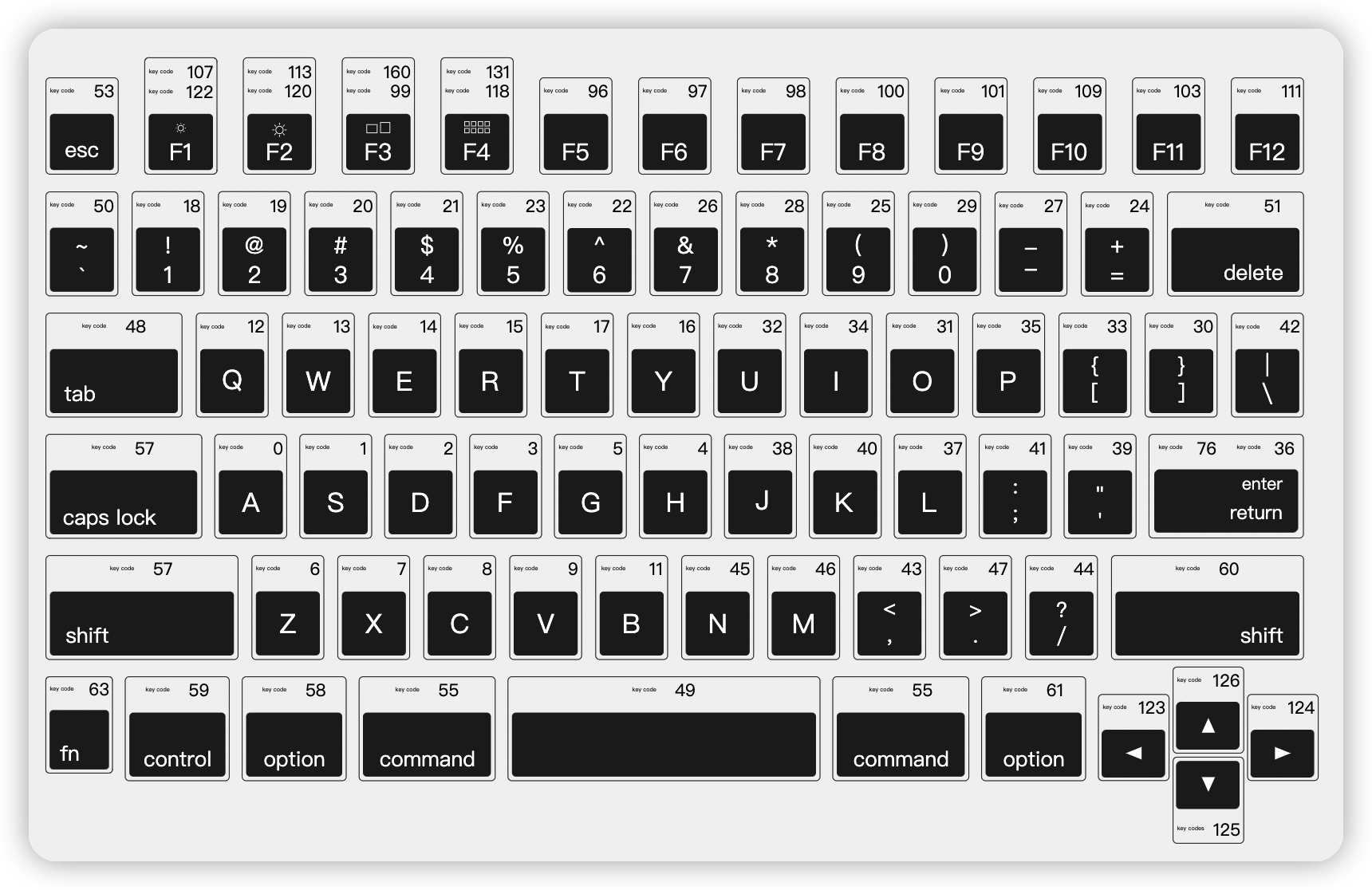
Apple Script Key Code

Complete list of AppleScript key codes

Apple Script Key Code

重置LaunchPad图标

1
defaults write com.apple.dock ResetLaunchPad -bool true && killall Dock

Pycharm快捷键大全

Mac下PyCharm快捷键大全_平头哥(AdgerZhou)的博客-CSDN博客_pycharm格式化代码快捷键mac

单一快捷键

图标 名称 备注
Command
Shift
Option
Control
↩︎ Return/Enter
Delete
=Fn+ ForwardDelete 仅能通过组合键或外置键盘实现
ArrowUp
ArrowDown
ArrowLeft
ArrowRight
=Fn+ PageUp 仅能通过组合键或外置键盘实现
=Fn+ PageDown 仅能通过组合键或外置键盘实现
Home=Fn+ Home 仅能通过组合键或外置键盘实现
End=Fn+ End 仅能通过组合键或外置键盘实现
Tab
=+ LeftTab 仅能通过组合键或外置键盘实现
Escape(Esc)

组合快捷键

点击展开
  • ⌃Space 基本的代码补全(补全任何类、方法、变量)

  • ⌃⇧Space 智能代码补全(过滤器方法列表和变量的预期类型)

  • ⌘⇧↩︎ 自动结束代码,行末自动添加分号

  • ⌘P 显示方法的参数信息

  • ⌃J, Mid. button click 快速查看文档

  • ⇧F1 查看外部文档(在某些代码上会触发打开浏览器显示相关文档)

  • ⌘+鼠标放在代码上 显示代码简要信息

  • ⌘F1 在错误或警告处显示具体描述信息

  • ⌘N, ⌃↩︎, ⌃N 生成代码(getter、setter、构造函数、hashCode/equals,toString)

  • ⌃O 覆盖方法(重写父类方法)

  • ⌃I 实现方法(实现接口中的方法)

  • ⌘⌥T 包围代码(使用if..else, try..catch, for, synchronized等包围选中的代码)

  • ⌘/ 注释/取消注释与行注释

  • ⌘⌥/ 注释/取消注释与块注释

  • ⌥↑ 连续选中代码块

  • ⌥↓ 减少当前选中的代码块

  • ⌃⇧Q 显示上下文信息

  • ⌥↩︎ 显示意向动作和快速修复代码

  • ⌘⌥L 格式化代码

  • ⌃⌥O 优化import

  • ⌃⌥I 自动缩进线

  • ⇥ / ⇧⇥ 缩进代码 / 反缩进代码

  • ⌘X 剪切当前行或选定的块到剪贴板

  • ⌘C 复制当前行或选定的块到剪贴板

  • ⌘V 从剪贴板粘贴

  • ⌘⇧V 从最近的缓冲区粘贴

  • ⌘D 复制当前行或选定的块

  • ⌘⌫ 删除当前行或选定的块的行

  • ⌃⇧J 智能的将代码拼接成一行

  • ⌘↩︎ 智能的拆分拼接的行

  • ⇧↩︎ 开始新的一行

  • ⌘⇧U 大小写切换

  • ⌘⇧] / ⌘⇧[ 选择直到代码块结束/开始

  • ⌥⌦ 删除到单词的末尾(⌦键为Fn+Delete)

  • ⌥⌫ 删除到单词的开头

  • ⌘+ / ⌘- 展开 / 折叠代码块

  • ⌘⇧+ 展开所以代码块

  • ⌘⇧- 折叠所有代码块

  • ⌘W 关闭活动的编辑器选项卡

  • Double ⇧ 查询任何东西

  • ⌘F 文件内查找

  • ⌘G 查找模式下,向下查找

  • ⌘⇧G 查找模式下,向上查找

  • ⌘R 文件内替换

  • ⌘⇧F 全局查找(根据路径)

  • ⌘⇧R 全局替换(根据路径)

  • ⌘⇧S 查询结构(Ultimate Edition 版专用,需要在Keymap中设置)

  • ⌘⇧M 替换结构(Ultimate Edition 版专用,需要在Keymap中设置)

  • ⌥F7 / ⌘F7 在文件中查找用法 / 在类中查找用法

  • ⌘⇧F7 在文件中突出显示的用法

  • ⌘⌥F7 显示用法

  • ⌘F9 编译Project

  • ⌘⇧F9 编译选择的文件、包或模块

  • ⌃⌥R 弹出 Run 的可选择菜单

  • ⌃⌥D 弹出 Debug 的可选择菜单

  • ⌃R 运行

  • ⌃D 调试

  • ⌃⇧R, ⌃⇧D 从编辑器运行上下文环境配置

  • F8 进入下一步,如果当前行断点是一个方法,则不进入当前方法体内

  • F7 进入下一步,如果当前行断点是一个方法,则进入当前方法体内,如果该方法体还有方法,则不会进入该内嵌的方法中

  • ⇧F7 智能步入,断点所在行上有多个方法调用,会弹出进入哪个方法

  • ⇧F8 跳出

  • ⌥F9 运行到光标处,如果光标前有其他断点会进入到该断点

  • ⌥F8 计算表达式(可以更改变量值使其生效)

  • ⌘⌥R 恢复程序运行,如果该断点下面代码还有断点则停在下一个断点上

  • ⌘F8 切换断点(若光标当前行有断点则取消断点,没有则加上断点)

  • ⌘⇧F8 查看断点信息

  • ⌘O 查找类文件

  • ⌘⇧O 查找所有类型文件、打开文件、打开目录,打开目录需要在输入的内容前面或后面加一个反斜杠/

  • ⌘⌥O 前往指定的变量 / 方法

  • ⌃← / ⌃→ 左右切换打开的编辑tab页

  • F12 返回到前一个工具窗口

  •  从工具窗口进入代码文件窗口

  • ⇧⎋ 隐藏当前或最后一个活动的窗口,且光标进入代码文件窗口

  • ⌘⇧F4 关闭活动run/messages/find/… tab

  • ⌘L 在当前文件跳转到某一行的指定处

  • ⌘E 显示最近打开的文件记录列表

  • ⌘⌥← / ⌘⌥→ 退回 / 前进到上一个操作的地方

  • ⌘⇧⌫ 跳转到最后一个编辑的地方

  • ⌥F1 显示当前文件选择目标弹出层,弹出层中有很多目标可以进行选择(如在代码编辑窗口可以选择显示该文件的Finder)

  • ⌘B / ⌘ 鼠标点击 进入光标所在的方法/变量的接口或是定义处

  • ⌘⌥B 跳转到实现处,在某个调用的方法名上使用会跳到具体的实现处,可以跳过接口

  • ⌥ Space, ⌘Y 快速打开光标所在方法、类的定义

  • ⌃⇧B 跳转到类型声明处

  • ⌘U 前往当前光标所在方法的父类的方法 / 接口定义

  • ⌃↓ / ⌃↑ 当前光标跳转到当前文件的前一个/后一个方法名位置

  • ⌘] / ⌘[ 移动光标到当前所在代码的花括号开始/结束位置

  • ⌘F12 弹出当前文件结构层,可以在弹出的层上直接输入进行筛选(可用于搜索类中的方法)

  • ⌃H 显示当前类的层次结构

  • ⌘⇧H 显示方法层次结构

  • ⌃⌥H 显示调用层次结构

  • F2 / ⇧F2 跳转到下一个/上一个突出错误或警告的位置

  • F4 / ⌘↓ 编辑/查看代码源

  • ⌥ Home 显示到当前文件的导航条

  • F3选中文件/文件夹/代码行,添加/取消书签

  • ⌥F3 选中文件/文件夹/代码行,使用助记符添加/取消书签

  • ⌃0...⌃9 定位到对应数值的书签位置

  • ⌘F3 显示所有书签

  • F5 复制文件到指定目录

  • F6 移动文件到指定目录

  • ⌘⌫ 在文件上为安全删除文件,弹出确认框

  • ⇧F6 重命名文件

  • ⌘F6 更改签名

  • ⌘⌥N 一致性

  • ⌘⌥M 将选中的代码提取为方法

  • ⌘⌥V 提取变量

  • ⌘⌥F 提取字段

  • ⌘⌥C 提取常量

  • ⌘⌥P 提取参数

  • ⌘K 提交代码到版本控制器

  • ⌘T 从版本控制器更新代码

  • ⌥⇧C 查看最近的变更记录

  • ⌃C 快速弹出版本控制器操作面板

  • ⌘⌥J 弹出模板选择窗口,将选定的代码使用动态模板包住

  • ⌘J 插入自定义动态代码模板

  • ⌘1...⌘9 打开相应编号的工具窗口

  • ⌘S 保存所有

  • ⌘⌥Y 同步、刷新

  • ⌃⌘F 切换全屏模式

  • ⌘⇧F12 切换最大化编辑器

  • ⌥⇧F 添加到收藏夹

  • ⌥⇧I 检查当前文件与当前的配置文件

  • `§⌃, ⌃“ 快速切换当前的scheme(切换主题、代码样式等)

  • ⌘, 打开IDEA系统设置

  • ⌘; 打开项目结构对话框

  • ⇧⌘A 查找动作(可设置相关选项)

  • ⌃⇥ 编辑窗口标签和工具窗口之间切换(如果在切换的过程加按上delete,则是关闭对应选中的窗口)

  • ⌘⇧8 竖编辑模式

  • ⌘O 查找类文件 Ctrl + N

  • ⌘⌥O 前往指定的变量 / 方法 Ctrl + Shift + Alt + N

  • ⌃← / ⌃→ 左右切换打开的编辑tab页Alt←/Alt→

  •  从工具窗口进入代码文件窗口 ESC

  • ⌘L 在当前文件跳转到某一行的指定处 Ctrl + G

  • ⌘E 显示最近打开的文件记录列表 Ctrl + E

  • ⌘⌥←⌘⌥→退回 / 前进到上一个操作的地方 Ctrl + Alt + ←/Ctrl + Alt + →

  • ⌘⇧⌫ 跳转到最后一个编辑的地方

  • ⌃H 显示当前类的层次结构Ctrl + H

  • ⌘⇧H 显示方法层次结构

  • ⌃⌥H 显示调用层次结构

  • F4 /⌘↓ 编辑/查看代码源

  • ⌘⌥U 显示类UML图

  • ⌃J 查看注释

  • ⌥⌦ 删除到单词的末尾(键为Fn+Delete

  • ⌥⌫ 删除到单词的开头

  • ⌘+ /⌘- 展开 / 折叠代码块

  • ⌘F1 在错误或警告处显示具体描述信息

  • ⌘⌥L 格式化代码

  • ⌃⌥O 优化import

  • ⇧↩︎ 开始新的一行

  • ⌘⇧↩︎ 自动结束代码,行末自动添加分号

  • ⌃I 实现方法(实现接口中的方法)

  • ⇧F6 重命名文件或者变量

  • ⌘N,⌃↩︎,⌃N 生成代码(getter、setter、构造函数、hashCode/equals,toString)

  • ⌘P 显示方法的参数信息

  • Double⇧ 查找任何东西

  • ⌘⇧F 全局查找(根据路径)

  • ⌘F 文件内查找

  • ⌘G 查找模式下,向下查找

  • ⌘⇧G 查找模式下,向上查找

  • ⌘⌥B 跳转到接口的实现

  • ⌘U 查看接口定义

  • ⌘⌥← /⌘⌥→ 退回 / 前进到上一个操作的地方

  • ⌘B /⌘ 鼠标点击 进入光标所在的方法/变量的接口或是定义处

  • ⌃⇧B 跳转到类型声明处

  • ⌥ Space,⌘Y 快速打开光标所在方法、类的定义

  • ⌘O 查找类文件

  • ⌘⇧O 查找所有类型文件、打开文件、打开目录,打开目录需要在输入的内容前面或后面加一个反斜杠/

  • F12 返回到前一个工具窗口

  •  从工具窗口进入代码文件窗口

  • ⇧⎋ 隐藏当前或最后一个活动的窗口,且光标进入代码文件窗口

  • F3选中文件/文件夹/代码行,添加/取消书签

  • ⌥F3 选中文件/文件夹/代码行,使用助记符添加/取消书签

  • ⌃0…⌃9 定位到对应数值的书签位置

  • ⌘F3 显示所有书签

  • ⌥F1 显示当前文件选择目标弹出层,弹出层中有很多目标可以进行选择(如在代码编辑窗口可以选择显示该文件的Finder)

  • ⌘F12 弹出当前文件结构层,可以在弹出的层上直接输入进行筛选(可用于搜索类中的方法)

  • ⌃⌘F 切换全屏模式

⚠注:+J可以调出所有提供的代码补全↩︎即可,下面仅列举常用的几个

原文地址:https://linmi.cc/836

Pycharm无法找到解释器

python - Pycharm project bug after cloning from VCS: "nothing to show" in interpreters - Stack Overflow

  1. 在 PyCharm 里关闭你的 project
  2. 备份 project 里的 .idea/ 文件夹
  3. 从当前 project 里从删除 .idea/ 文件夹
  4. 在 Pycharm 中重新打开该 project

project 将重新初始化,然后可以将备份中的一些设置文件复制到新的 .idea/ 文件夹中。或者也可以选择不复制手动重新选择新的 interpreter

Bitwarden快捷键

Keyboard Shortcuts | Bitwarden Help & Support

点击展开

浏览器扩展快捷键

Microsoft Edge 的自动填充需要最新的基于 Chromium 的版本。

某些浏览器可能会将以下组合键用于其他的默认快捷键,并且可能需要进行配置。

您可以通过访问 chrome://extensions/shortcuts 在大多数基于 Chrome 的浏览器(Chrome、Edge、Vivaldi、Brave 等)上配置浏览器扩展的快捷键。

Firefox 上的快捷键可以通过管理扩展快捷键来更改 。

  • Ctrl/CMD + Shift + Y → 激活扩展

  • Ctrl/CMD + Shift + L → 自动填充,再次按下可在匹配的登录名之间循环

  • Ctrl/CMD + Shift + 9 → 生成密码并复制到剪贴板

  • Ctrl/CMD + Shift + N → 锁定扩展

如果一个登录使用 Bitwarden TOTP 验证器,使用 Cmd/Ctrl + Shift + L 会在自动填充后自动将您的 TOTP 复制到剪贴板。您所要做的就是 Cmd/Ctrl + V 粘贴!

桌面应用程序快捷键

通用

  • Ctrl/CMD + , → 首选项

  • Ctrl/CMD + L → 立即锁定

  • Ctrl/CMD + Q → 退出

文件

  • Ctrl/CMD + N → 添加新的登录

编辑

  • Ctrl/CMD + Z → 撤销

  • Ctrl/CMD + Y → 重做

  • Ctrl/CMD + X → C剪切

  • Ctrl/CMD + C → 复制

  • Ctrl/CMD + V → 黏贴

  • Ctrl/CMD + A → 全选

  • Ctrl/CMD + U → 复制用户名

  • Ctrl/CMD + P → 复制密码

  • Ctrl/CMD + T → 复制 TOTP

查看

  • Ctrl/CMD + F → 搜索密码库

  • Ctrl/CMD + G → 密码生成器

  • Ctrl/CMD + = → 放大

  • Ctrl/CMD + - → 缩小

  • Ctrl/CMD + 0 → 重置缩放

  • F11 → 全屏

  • Ctrl/CMD + Shift + R → 重新加载

  • F12 → 开发者选项

窗口

  • Ctrl/CMD + M → 最小化

  • Ctrl/CMD + Shift + M → 发送到托盘/隐藏到菜单栏

  • Ctrl/CMD + Shift + T → 总在最前

  • Ctrl/CMD + W → 关闭窗口